Show Blogger Image Only In Homepage And Hide It In Post Page


Want to know how to hide specific images from blogger posts pages and to appear only in homepage? In this tutorial we’ll learn how we can do this! So let’s start hiding our images from posts pages:


Step 1. 


If you are using the old Blogger interface:

  • Go to Dashboard – Design – Edit HTML – Expand Widget Template (make a backup)

If you are using the new Blogger interface:

  • Go to Dashboard – Template – Edit HTML – Proceed – Expand Widget Template (make a backup)

Step 2. Find (CTRL + F) this code in your template:

    }]]></b:skin>

Step 3. Copy and paste the following code just below it

<b:if cond=’data:blog.pageType != &quot;index&quot;’>
<style>
.hidepic{
display: none;
}
</style>
</b:if>

Step 4. Save the Template.
Now everytime you create a post, firstly add the pic you want to hide and then switch to Edit HTML tab where you’ll see the HTML code of the image you have added that will look something like this:

<div class=”separator” style=”clear: both; text-align: center;”>
<a href=”http://2.bp.blogspot.com/-shsd_c51zRA/T6UeoPgcbII/AAAAAAAACCc/sYI6WB22CaM/s1600/fire_bird_by_fhrankee-d32af8v.png” imageanchor=”1″ style=”margin-left: 1em; margin-right: 1em;”><img border=”0″ height=”320″ src=”http://2.bp.blogspot.com/-shsd_c51zRA/T6UeoPgcbII/AAAAAAAACCc/sYI6WB22CaM/s320/fire_bird_by_fhrankee-d32af8v.png” width=”320″ /></a></div>

Note: it should be at the exact location where your image has been added (if the image is at the middle of the text, then the code should be located also at the middle)
All you have to do is to replace “separator” with “hidepic” as you can see in this screenshot below:
That’s it!

Enjoy Guys! and don’t forget to post your comments. � MyTricksTime.com

How To Create Drop Caps (Big First Letters) In Blogger/Blogspot

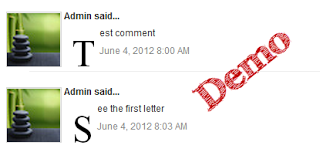
Here’s another way you can customize your Blog. In this case, your Posts and Comment’s first letter. The effect is a large first letter stretching down three or four lines with the text wrapped around. The drop cap letter can also use a different font and can be a different color to the rest of the text. You often see this style in newspapers, literature, magazines. In this tutorial i will show you how to apply automatically Magazine text style in Blogger Posts and Comments. So let’s start adding it!

Read Also : A Simple Related Posts Widget For Blogger

Big First Letter for your Blogger / Blogspot Posts


DEMO BELOW


Step 1.

  •  If you are using the old Blogger interface:

Go to Dashboard – Design – Edit HTML – Expand Widget Template (make a backup)

  • If you are using the new Blogger interface:

Go to Dashboard – Template – Edit HTML – Proceed – Expand Widget Template (make a backup)

Step 2. Search (CTRL + F) for this piece of code:

]]></b:skin>


Step 3. Just above it, add the following:

.capital:first-letter {
float: left;
display: block;
font-family: Times, serif, Georgia;
font-size: 40px;
color: #000000;
margin:0px 5px 0 0;
padding:0 0 0 10px;
}


Customize:

Color – change the color highlighted in blue with the value of your desired color
Size – to change the letter size, increase/decrease the value highlighted in pink.

Step 4. Now search for this code:

<data:post.body/>


Step 5. Then immediately before and after add the red fragments you see in the example below:

 <div class=’capital’><data:post.body/></div>


Step 6. Save your template.

Important! If the above code is not working, add one of following codes from this example:


<p class=”capital”><data:post.body/></p>


Or

<span class=”capital”><data:post.body/></span>


Big First Letter For Blogger/Blogspot Comments


                                        DEMO BELOW


Step 1. Log in to your Blogger account, then go to Design (Layout) >> Edit HTML >> check the “Expand Widget Templates” box

Step 2. Search (CTRL + F) for this piece of code (if you have already added this code, skip step 2 & 3):

]]></b:skin>


Step 3. Add the following code just above ]]></b:skin>:

.capital:first-letter {
float: left;
display: block;
font-family: Times, serif, Georgia;
font-size: 40px;
color: #000000;
margin:0px 5px 0 0;
padding:0 0 0 10px;
}


Customize:

Color – change the color highlighted in blue with the value of your desired color
Size – to change the letter size, increase/decrease the value highlighted in pink.

Step 4. Then Search for this piece of code:

<data:comment.body/>


Step 5. Add the red codes before and after <data:comment.body/> as you can see in my example below:

<p class=”capital”><data:comment.body/></p>


Step 6. Save your Template.

That’s it! Now you have a cool drop cap first letter on your blog.
Enjoy Guys! and don’t forget to post your comments. � MyTricksTime.com

How to add Recommended Post Slide Out Widget For Blogger

Recommended Post Widget

You know those popup messages that slide out from the bottom right corner once you�ve almost reached the bottom of the page? Well, they used to be available only on WordPress but not anymore; now Blogger users can enjoy it too! The Recommended Post slide Out Widget is an invitation to the reader to read any other post once he has read one of your blog entries. It’s both useful for you (can improve your Click Through Rate (CTR) ) and for your blog visitors too.


Demo
Scroll down to the bottom of the post and you should see the Recommended Slide Out Widget appearing in the right corner of blog’s page.


How to add the Recommended Post Slide out Widget
1. Log in into your Blogger account, then go to Design (or Layout) > Page Elements
2. Click on Add a Gadget Link
3. Choose “HTML/JavaScript” option
4. Paste this code inside the empty box:

<div id=”hlslidein” style=”display:none;”> <div class=”help”>?</div><div class=”expand”>+</div> <div class=”close”>X</div> <p>Recommended for you</p> <div id=”hlslidein_image”></div> <div  id=”hlslidein_title”>Loading..</div> </div> <script> if(document.location.href.split(“/”).length==6&&document.location.href.indexOf(“.html”)!=-1){if(typeof hl_onload_queue==’undefined’)var hl_onload_queue=[];if(typeof hl_dom_loaded==’boolean’)hl_dom_loaded=false;else var hl_dom_loaded=false;if(typeof hl_async_loader!=’function’){function hl_async_loader(src,callback,id){var script=document.createElement(‘script’);script.type=”text/javascript”;script.async=true;script.src=src;script.id=id;var previous_script=document.getElementById(id);if(previous_script)if(previous_script.readyState==”loaded”||previous_script.readyState==”complete”){callback();return}else{script=previous_script}if(script.onload!=null)previous_callback=script.onload;script.onload=script.onreadystatechange=function(){var newcallback;if(previous_script&&previous_callback)newcallback=function(){previous_callback();callback()};else newcallback=callback;if(hl_dom_loaded){newcallback()}else hl_onload_queue.push(newcallback);script.onload=null;script.onreadystatechange=null};var head=document.getElementsByTagName(‘head’)[0];if(!previous_script)head.appendChild(script)}}if(typeof hl_domLoaded!=’function’)function hl_domLoaded(callback){hl_dom_loaded=true;var len=hl_onload_queue.length;for(var i=0;i<len;i++){hl_onload_queue[i]()}}hl_domLoaded();hl_async_loader(“http://ajax.googleapis.com/ajax/libs/jquery/1.7.1/jquery.min.js”,function(){hl_async_loader(“http://helplogger.googlecode.com/svn/trunk/Recommended Post Slide Out For Blogger Blogspot.js”,function(){},”hl-out-slide”)},”jQueryjs”)} </script> <a href=”http://helplogger.blogspot.ro/2012/06/recommended-post-slide-out-widget-for.html” target=”_blank”></a>


5. Save The Widget.
6. Go to Edit HTML > Check the “Expand Widget Template” box
7. Search (CTRL + F) for the following code :

<div class=’post-footer-line post-footer-line-1′>


OR

<p class=’post-footer-line post-footer-line-1′>


OR

<data:post.body/>


Immediately below any of these lines, add the following snippet

<b:if cond=’data:blog.pageType == “item”‘>
<div style=’display:none’ id=’bpslidein_place_holder’></div>
</b:if>


Now when the reader scrolls down to this div, the slide will open up.

8. Save your template. And that’s it!

Enjoy Guys! and don’t forget to post your comments. � MyTricksTime.com

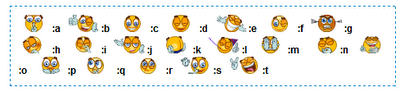
Add Facemoods Emoticons To Your Blogger Comments

Want to add Facemoods emoticons in your Blogger comments? Then follow the next steps:Step 1.

If you are using the old Blogger interface:

  • Go to Dashboard – Design – Edit HTML – Expand Widget Template (make a backup)

If you are using the new Blogger interface:

  • Go to Dashboard – Template – Edit HTML – Proceed – Expand Widget Template (make a backup)


Step 2. Search (CTRL + F) for this code:


Read Also : Add �Email Subscription Form� To Blogger Blogspot

  • For previous commenting system: 

<h4 id=’comment-post-message’><data:postCommentMsg/></h4>

  • For threaded comments:

<div class=’post-footer-line post-footer-line-3′>

Step 3. Add the below code just above it
(for threaded comments, add the code after):

<b:if cond=’data:blog.pageType == “item”‘>
<div style=’ width: 450px; text-align: left; border: 1px dashed #0084ce; background: transparent; padding: 10px; color:#000000; font-weight:bold; ‘>
<img border=’0′ src=’http://1.bp.blogspot.com/-zY65UBxSl6w/T67AajI_U6I/AAAAAAAACIc/fCV19C1627Q/s1600/helplogger.blogspot.com(1).gif’/> :a
&#160;
<img border=’0′ src=’http://4.bp.blogspot.com/-M8aBZtLjGqY/T67Ai2d8eAI/AAAAAAAACIk/PrDerObloAw/s1600/helplogger.blogspot.com+(2).gif’/> :b
&#160;
<img border=’0′ src=’http://3.bp.blogspot.com/-HfIjCWOuxwo/T67Ar7HZiHI/AAAAAAAACIs/RgwvdPP4JSc/s1600/helplogger.blogspot.com(3).gif’/> :c
&#160;
<img border=’0′ src=’http://4.bp.blogspot.com/-98YuuiC8MIc/T67AzJ3Xf0I/AAAAAAAACI0/UtaFpgTb_PM/s1600/helplogger.blogspot.com(4).gif’/> :d
&#160;
<img border=’0′ src=’http://3.bp.blogspot.com/-ikCFMFesIrE/T67BAtTQGhI/AAAAAAAACI8/AisqU7R–Yc/s1600/helplogger.blogspot.com(5).gif’/> :e
&#160;
<img border=’0′ src=’http://2.bp.blogspot.com/-VSY5nbsSEIs/T67BK3G-B6I/AAAAAAAACJE/n_fhk-2Ihqc/s1600/helplogger.blogspot.com(6).gif’/> :f
&#160;
<img border=’0′ src=’http://3.bp.blogspot.com/-e9hytPNLXeY/T67BSj27JJI/AAAAAAAACJM/Rwonrid9oiQ/s1600/helplogger.blogspot.com(7).gif’/> :g
&#160;
<img border=’0′ src=’http://4.bp.blogspot.com/-mT-nqGFvXec/T67BZDPxvxI/AAAAAAAACJU/fgTPtQNxMK8/s1600/helplogger.blogspot.com(8).gif’/> :h
&#160;
<img border=’0′ src=’http://3.bp.blogspot.com/-xcMDAiCizIE/T67BfnBeWSI/AAAAAAAACJc/_OqmXLGhjLg/s1600/helplogger.blogspot.com(9).gif’/> :i
&#160;
<img border=’0′ src=’http://3.bp.blogspot.com/-XJUn74vJTwo/T67BrafHO3I/AAAAAAAACJk/B40nJjxUxNE/s1600/helplogger.blogspot.com(10).gif’/> :j
&#160;
<img border=’0′ src=’http://3.bp.blogspot.com/-JgARtAx7IHo/T67B2Db6LjI/AAAAAAAACJs/U1EWgczqOYY/s1600/helplogger.blogspot.com(11).gif’/> :k
&#160;
<img border=’0′ src=’http://2.bp.blogspot.com/–K1Z6RvN57w/T67CCzlaGcI/AAAAAAAACJ0/iF2-osmFALE/s1600/helplogger.blogspot.com(12).gif’/> :l
&#160;
<img border=’0′ src=’http://4.bp.blogspot.com/-c0DJDg4M2n4/T67CTf-xShI/AAAAAAAACJ8/BqUmJYoDBLI/s1600/helplogger.blogspot.com(13).gif’/> :m
&#160;
<img border=’0′ src=’http://1.bp.blogspot.com/-zrvYy6caFXM/T67CZi7etnI/AAAAAAAACKE/iPJsX_duWjE/s1600/helplogger.blogspot.com(15).gif’/> :n
&#160;
<img border=’0′ src=’http://3.bp.blogspot.com/-F2LUTd1hG_o/T67CfNLnIlI/AAAAAAAACKM/UHuPyigCX24/s1600/helplogger.blogspot.com(16).gif’/> 😮
&#160;
<img border=’0′ src=’http://3.bp.blogspot.com/-Vd6U_2eq_Gk/T67CosaWm8I/AAAAAAAACKU/JgnYMS4AJOc/s1600/helplogger.blogspot.com(14).gif’/> :p
&#160;
<img border=’0′ src=’http://1.bp.blogspot.com/-faDYi6E_d6E/T67CybEuj1I/AAAAAAAACKc/nHxSH7KMSwY/s1600/helplogger.blogspot.com(17).gif’/> :q
&#160;
<img border=’0′ src=’http://2.bp.blogspot.com/-2QiwXpJ7gxk/T67C41ItlCI/AAAAAAAACKk/8sba1I9fZOY/s1600/helplogger.blogspot.com(18).gif’/> :r
&#160;
<img border=’0′ src=’http://2.bp.blogspot.com/-KUlSaDVWqW8/T67C_4ITH-I/AAAAAAAACKs/e6N7K2jJvl8/s1600/helplogger.blogspot.com(19).gif’/> :s
&#160;
<img border=’0′ src=’http://2.bp.blogspot.com/-UC_5gE8LgaQ/T67DGU12FBI/AAAAAAAACK0/oHA628PaDhk/s1600/helplogger.blogspot.com(20).gif’/> :t   <a href=’http://helplogger.blogspot.com/2012/05/add-facemoods-emoticons-to-your-blogger.html’ style=’color: rgb(30, 122, 183); font-size: x-small;’>Add smileys to Blogger + </a>
</div></b:if>

Step 4. Now search for this piece of code:

</body>


Step 5. And add the following code immediately above it:

  • For previous commenting system:

<script type=’text/javascript’ src=”http://helplogger.googlecode.com/svn/trunk/facemood emoticons.js”/>

  • For threaded comments: 

<script type=’text/javascript’ src=”http://helplogger.googlecode.com/svn/trunk/facemood emoticons threaded.js”/>

Step 6. Save the Template. And enjoy your comments 🙂Enjoy Guys! and don’t forget to post your comments. � MyTricksTime.com

How To Add �Email Subscription Form� To Blogger Blogspot

If you are providing useful information in your blog, then every visitor will want to get latest updates from your blog. For that purpose you need a Email Subscription Form in your blog, so that interested visitors can easily get latest updates. And to add email or feed Subscription Form to your blogger blog (blogspot) it’s a very easy thing to do. So let’s begin:

1. Log in to Blogger, then go to Design > Page Elements > click on “Add a Gadget” link. 
2. From the pop-up window, click on the “HTML/JavaScript” gadget. 
3. Paste the following code inside the empty box:

<style>
.hl-email{
background:url(http://4.bp.blogspot.com/-u3UaeUufpmI/T8lFuelsg8I/AAAAAAAACQY/tOWbHsgTYKc/s1600/mail.png) no-repeat 0px 12px ;
width:300px;
padding:10px 0 0 55px;
float:left;
font-size:1.4em;
font-weight:bold;
margin:0 0 10px 0;
color:#686B6C;
}
.hl-emailsubmit{
background:#9B9895;
cursor:pointer;
color:#fff;
border:none;
padding:3px;
text-shadow:0 -1px 1px rgba(0,0,0,0.25);
-moz-border-radius:6px;
-webkit-border-radius:6px;
border-radius:6px;
font:12px sans-serif;
}
.hl-emailsubmit:hover{
background:#E98313;
}
.textarea{
padding:2px;
margin:6px 2px 6px 2px;
background:#f9f9f9;
border:1px solid #ccc;
resize:none;
box-shadow:inset 1px 1px 1px rgba(0,0,0,0.1);
-moz-box-shadow:inset 1px 1px 1px rgba(0,0,0,0.1);
-webkit-box-shadow:inset 1px 1px 1px rgba(0,0,0,0.1); font-size:13px;
width:130px;
color:#666;}
</style>
<div class=”hl-email”>
Subscribe via Email <form action=”http://feedburner.google.com/fb/a/mailverify” id=”feedform” method=”post” target=”popupwindow” onsubmit=”window.open(‘http://feedburner.google.com/fb/a/mailverify?uri=mytrickstime‘, ‘popupwindow’, ‘scrollbars=yes,width=550,height=520’);return true”>
<input gtbfieldid=”3″ class=”textarea” name=”email” onblur=”if (this.value == &quot;&quot;) {this.value = &quot;Enter email address here&quot;;}” onfocus=”if (this.value == &quot;Enter email address here&quot;) {this.value = &quot;&quot;;}” value=”Enter email address here” type=”text” />
<input type=”hidden” value=”mytrickstime” name=”uri”/><input type=”hidden” name=”loc” value=”en_US”/>
<input class=”hl-emailsubmit” value=”Submit” type=”submit” />
</form>
</div>

Read Also :Speed up our blog by hosting CSS files externally

Settings 

  • Replace the url address in green if you want to change the email icon
  • Increase/Decrease the 130 width value for a wider text area
  • Replace http://feedburner.google.com/fb/a/mailverify?uri=mytrickstime with your Feedburner Email Feed link. You can get it by visiting your feedburner account then navigate to Publicize and then to Email Subscriptions.
  • Replace mytrickstime with your feed title. It appear at the end of your feed link. In my case it is http://feedburner.google.com/fb/a/mailverify?uri=mytrickstime

4. Save your widget and check your blog.Enjoy Guys! and don’t forget to post your comments. � MyTricksTime.com