HOW TO ADD BORDER TO POST TITLES

Add Border To Post Titles in Blogger: Let’s play with CSS and change the border of post titles in Blogger.You may have noticed the blog titles comes with “text-decoration:none” by default , in simple words no style is applied to the titles of the Blog Posts.Actually we can change the post titles and can decorate it with different CSS
properties but here we gonna apply the border ! Border can be “groove” , “Solid” , “dashed” , or “dotted” having a specific color code and number of pixels.Don’t confuse it is as easy as eating cake.

How To Add Border To Post Titles

  • Go To Blogger Dashboard
  • Click On Template
  • EDIT HTML
  • Search for post-title or .post or only “post”
  • Search until you find the selector “Post Title” as shown below


  • Look at the above snapshot i added there the border Property i.e “border:groove 1px and color” Change these values to your desired values and save the template.You can even change the color of the post title just by simply changing the color code of “COLOR” property in the above script.
  • However here we have selected the border color Groove having gray color and width 1pixel.
  •  That’s it !!

 Note : In many templates the POST TITLE Selector is .post-title but if you can’t find or if this selector is not available then you have to find the exact and matchable selector i.e the selector which matches with the class or ID defined in the div tags! 

 
What’s Up : Actually this hack will add a gray color border to all the post titles having 1 pixel width ,actually it adds 5 stars to the beauty and style of template.It has no effect on blog loading speed.Stay Blessed ,Happy Blogging!

Enjoy Guys! and don’t forget to post your comments. � MyTricksTime.com

Download your data from Google account


download google data
We all use Google for many reasons, We also depend on Google for many services like Gmail, Picasa web, Analytics, Adwords, Adsense,Google+ etc.

As we do use them , we also host some of our data like images, videos, contacts and many more things on Google servers .
When ever you need this data, You can download all your data you have stored on Google through your Google account by following this procedure.
How to download all Personal data from Google Account :
  • Visit www.Google.com and log in to your Google account.
  • Click on  your name on top right corner of your Google homepage.
  • Select Account settings options from the drop down menu.
  • Select Data Liberation tab on your Account settings page.
  • Now you can find link �Download your data� button. Click this to download all your Google account data.
  • Or else choose any individual service you use to download respective data of that service. For example Picasa.
download google data
That’s it. 🙂

Enjoy Guys! and don’t forget to post your comments. � MyTricksTime.com

Tata Docomo Friend�s Balance Check Trick

Hello Friends,
now Know Your Friend�s tata docomo Balance Using This Trick.
Just Follow Below Instructions.
Dial 09045012345And Choose the  Option You want to Know Information About Another number
After This You Can Check Anybody�s Mobile Balance.

If They Are Saying That Send A Sms To 121 By writing �Bal� Ignore it.
And Try Again.
In Most Cases This Trick Working.

Please Comment Below.

Enjoy Guys! and don’t forget to post your comments. � MyTricksTime.com

How to create facebook Chat codes

Have you seen People sending Smiles and images that are not part of Facebook Traditional chat codes.
Here in this post You will see how easy it is to create these codes and Impress you Facebook friends
Like, The best part is you can create your Unique codes . You can create codes of any image stored in you computer, by following these

steps

Follow these Steps :- 


1. Go to Smileyti

2. Click on “Browse” and select The  picture you want to use in facebook chat.

3. Enter captcha code.[If you get one]

4. Click on “Upload Now” .


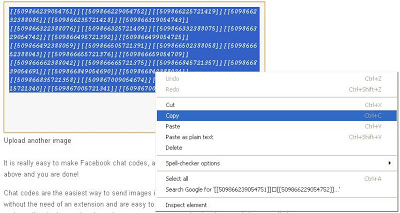
5. It will generate code in few seconds in This form<< [[512585645451273]] [[512585638784607]] >>
Copy The code


6. Paste it in facebook chat and hit enter.
 DONE 😀

Enjoy Guys! and don’t forget to post your comments. � MyTricksTime.com

How to Restore your Computer from a System Image

Recently we had taught you,how to make a System Image Disc in Windows 7,Now it’s time to see if it is working or not.First of all make sure that your system is set up to boot from disc drive,because we will boot the PC with System Repair Disc,which we had created.
restore windows 7

Steps to Restore Computer From System Image

  • Insert your Repair Disc into Disk Drive and restart your Computer
  • Now you will see a black screen asking “Press any key to boot from disc“.Just follow the instruction given by your computer and wait until Windows loads up all the required files
  • Now,Select a Keyboard input method: US and click on the “Next” button
  • You will see different-different options.Just you have to select “Restore your computer using a system image that your created earlier” and click on Next button.
  • Now windows will look for the drive for system image.
  • Click on Next button.
  • Now click on Finish to restart the restoring process.

Enjoy Guys! and don’t forget to post your comments. � MyTricksTime.com