

Add Facebook Like Button Below Post Titles

This Facebook Like button allow users to Like your post and share it to their Facebook friends. If you want to add the Facebook Like Button below your blogger post title, then follow these steps:

Adding facebook like button below post titles

Read Also : A Simple Related Posts Widget For Blogger


1. Go To Blogger Dashboard >> Design >> Edit HTML 
2. Check the “Expand Widget Templates” Box 
3. Search (CTRL + F) for this code:

<data:post.body/>

4.  Just above it paste the code below:

<p><iframe allowTransparency=’true’ expr:src=’&quot;http://www.facebook.com/plugins/like.php?href=&quot; + data:post.url + &quot;&amp;layout=button_count&amp;show_faces=false&amp;width=100&amp; action=like&amp;font=arial&amp;colorscheme=light&quot;’ frameborder=’0′ scrolling=’no’ style=’border:none; overflow:hidden; width:100px; height:20px;’/></p>


5.  Save your template and you are done!

For any questions you may have, please leave a comment below
Enjoy Guys! and don’t forget to post your comments. � MyTricksTime.com

Airtel Free 3G Gprs Tricks For PC

Hello Friends

Now again i am here with a new latest Trick for MyTricksTime Fans…
this tricks for Airtel GPRS which is work only on PC (computer and Laptops)..
when you will check out this one you’ll also get surprised from this trick. you’ll get fastest internet speed as not you have before and u can check it is free…. 🙂


wanna how to work this Trick just look out below and

Follow This Steps:-


Download DUCK-1VPN from http://www.duck-1.net/

Download
Install DUCK-1VPN on your PC.
Signup your account at http://www.duck-1.net/ with Username and Password.
Open DUCK-1VPN.
Enter Username and Password (which is received from the email)
Open Settings-In port select Remote Port as 443,adn in the main select demo golden server And Protocol as tcp wait for some time..

When It Gets connected then start Browsing + Downloading Upto 100Mbps.
Enjoy Guys! and don’t forget to post your comments. � MyTricksTime.com

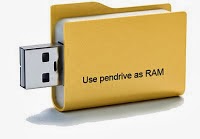
How to use pendrive as ram memory in windows 7 & 8

Hi friends, Do you know Windows 7 / 8 and Windows vista comes with a ready boost option.
Q-What is ready boost
Ans- ReadyBoost is a disk cache component of Microsoft Windows, first introduced with Microsoft’s Windows Vista in 2006 and bundled with Windows 7 in 2009. It works by using flash memory, a USB flash drive,SD card, Compact  Flash, external hard drive or any kind of portable flash mass storage

system as a cache. ReadyBoost is also used to facilitate SuperFetch, which allows it to perform analysis of boot-time disk usage patterns and creates a cache which is used in subsequent system boots.” Source
If you are using a high configuration PC, It doesn’t show any effect on speed because if you are a normal user I think only a few times you use your full ram memory but if you are using an old pc with low ram memory(Like 512 MB or IGB) and harddisk & using vista or 7. It speed up your PC and you will see the result, reduced application data loading time, reduced shutdown and restart time and many more you can’t imagine without High ram memory.

How to use this feature

  • Plug in your pendrive
  • Format with NTFS or FAT32
  • Now go to properties
  • Select ReadyBoost
  • Check Use this device
  • Choose maximum space to reserve system speed
  • Click on Apply and OK. 

Your readyboost PenDrive is ready Now to Use.

Here is an personal suggestion HP and Sandisk is the Best for this work so what are you waiting for.

Enjoy Guys! and don’t forget to post your comments. � MyTricksTime.com

Punch Facebook Chat Code

There are many Facebook Chat Codes are available to make fun with your friends, so recently Facebook also added an amazing Punch Facebook Chat, take a look at the image: ^

Copy the below Facebook Punch Code and paste
it in your chat options while chatting with your friends:

[[488850267812232]] [[488850257812233]] [[488850271145565]] [[488850261145566]] [[488850264478899]]
[[488850344478891]] [[488850331145559]] [[488850334478892]] [[488850337812225]] [[488850341145558]]
[[488850434478882]] [[488850424478883]] [[488850427812216]] [[488850421145550]] [[488850431145549]]
[[488850494478876]] [[488850497812209]] [[488850501145542]] [[488850504478875]] [[488850507812208]]
[[488850607812198]] [[488850611145531]] [[488850601145532]] [[488850604478865]] [[488850597812199]]


Let us know your views in the below comments.

Enjoy Guys! and don’t forget to post your comments. � MyTricksTime.com

How To Search Images In Google By Exact Size

Google have previously offered us to search images by size to find the most suitable image according to the resolution we want.now we can search the exact dimension and Google will only show large images for that resolution.


the previous �exact size� option is missing in the new Google images but we can simply use �imagesize� operator in our query for searching exact size images, see the screenshot above.

Read Also : Google Search without Internet

enter your query like this, �your query here� imagesize:widthxheight , after hitting enter Google will show exact images according to the size.

Enjoy Guys! and don’t forget to post your comments. � MyTricksTime.com