Samsung has added a new stablemate to the Gear smart watch range — the 3G-enabled Gear S. Can the sixth smart watch in a year be the charm? I had a chance to try one up close, and…it’s hard to tell. Beyond its eye-catching big curved screen, its success might hinge on price and whether or not anyone feels the need for 3G on a watch. But, it’s a sign that curved smart watches might be here to stay, at least for Samsung.
Where this Gear is different from others before is it’s also a full-featured 3G and Wi-Fi -enabled device: it can make calls, receive calls, check messages and be connected to GPS even without a phone nearby. But hold your horses: you’ll need a Samsung phone running Android 4.3 or later to download and install apps. Strangely, it’s not a totally self-sufficient smartwatch after all…but it comes close.
Sarah Tew
Design
Design-wise, the Gear S doesn’t seem wildly different from the rest of the Gear family. It features a 2-inch curved Super AMOLED screen, with a 360×480 resolution, and runs on a 1GHz dual core processor. It’s like an ultra-wide Gear Fit in a lot of ways: the rectangular screen is longer than it is wide, offering a sort of curved-portrait display.
The vivid AMOLED screen is eye-popping, although the stock collection of Samsung watch faces didn’t excite me. Scrolling through news headlines with photos almost felt like I was using a mini-smartphone. The extra pixel space does push this watch into uncharted wrist-worn screen-real-estate territory.
The front face of the device also features a small physical button, like the Gear 2 and Gear 2 Neo. To get to apps and sub-menus, you swipe from different sides, or press the home button.
Sarah Tew
On the underside is a SIM card slot, along with an optical heart rate monitor — the same as on the Gear Fit, Gear 2, Gear 2 Neo and Gear Live watches. The Gear S is IP67 water resistant like its 2014 Gear brethren, meaning it could be showered with, but isn’t meant for swimming.
Like the Gear Fit, the Gear S pops out of its band. The rubber white band I tried had a sporty feel, but a seriously wide band. You’d need specialized Gear S accessories, as opposed to any readily-available watchbands like the Gear 2 and Gear 2 Neo.
Sarah Tew
Battery life
An onboard 300 mAh battery should provide up to two days of run time, give or take, depending on whether you have your screen always on: much like Gear Live for Android Wear, this Gear can power down into a low-light clock display that stays on constantly.
The included snap-on battery charger has a bonus though: an extra 350 mAh battery built in that offers an extra boost on the go, for quick recharging while in a bag. Smart move, Samsung.
Specs
The Gear S has an accelerometer, gyroscope, compass, heart rate monitor, and ambient light, UV and barometric sensors. It also has 802.11 b/g/n Wi-Fi, Bluetooth 4.1, A-GPS, and can store music files downloaded locally on its 4GB of storage.
Except for the added Wi-Fi, 3G and bigger screen, it comes closest to the Gear 2 Neo in terms of features: S Voice for voice commands, a speakerphone for making and receiving calls, a home button, and heart rate monitor…but no camera.
Sarah Tew
3G and calling
The Gear S has both 3G and 2G connectivity, but both supported carriers and pricing plans for data aren’t confirmed yet. It could work like other 3G-connected watches: as a separate device to folded into a connected data plan.
The Gear S supports phone calls over 3G, 2G and Bluetooth while paired to your phone, but not over Wi-Fi. There’s also a QWERTY keyboard that can help while writing short emails or messages, but that’ll get frustrating in a hurry. Hopefully S Voice might be enabled to help aid with dictation, but I didn’t get to try that out.
Sarah Tew
Fitness
The Gear S feels a little more fitness oriented than the Gear 2 watches: its sleeker design, rubberized band, and ability to track runs with GPS without a phone make it feel like an answer to the recent Timex Ironman One GPS+.
There’s more good news, too: the Gear S runs a Nike+ Running App to turn it into a fuel-compatible fitness gadget. Or, you can use Samsung S Health, which is your conduit into checking and tracking heart rate.
Sarah Tew
Apps
Samsung promises 1,000 apps on Tizen that will run on the Gear S when it launches. Unclear, however, is how many of them will actually be optimized for that extra-long display.
The built-in collection of apps is already pretty comprehensive, though, including turn-by-turn navigation from HERE, and a 24-hour news service provided by The Financial Times.
Sarah Tew
Will it fit in?
A 3G-connected smartwatch might be a bridge too far for a lot of people, unless Samsung shows how this device can be affordably linked into the average person’s phone plan. Still, the Gear S shows that Samsung isn’t giving up: on design tweaking, software, or Tizen.
The average person might start to get tired, though. How many smartwatches can we hear about before we get watch fatigue before even buying one? That’s a delicate path Samsung needs to walk right now with the Gear S and future watches: aggressiveness versus numbing overload. The Gear S feels like one of the best-designed Gears yet, but it might be way too sub-specialized for those not knee-deep in wearable tech to care. Source: cnet
Enjoy Guys! and don’t forget to post your comments. � MyTricksTime.com
What Is USB Debugging Mode? USB Debugging Mode is a mode that can be enabled in Android after connecting the device directly to a computer with a USB cable. The primary function of this mode is to facilitate a connection between an Android device and a computer with Android SDK (software development kit). As the name might suggest, Android SDK is a software suite that’s designed to aid in the development of Android apps. Ever wondered how a programmer creates apps on the Android? They definitely don’t code them straight on the phone device! That would be nightmarish at best. Instead, they utilize the environment of the Android SDK to code apps on a computer, use USB Debugging Mode to transfer those apps to a device for testing. But, again, here’s the takeaway: USB Debugging Mode establishes a direct connection between an Android device and a computer and readies it for deeper-level actions. That’s the important part. In some versions of Android, the USB Debugging Mode feature may be called Developer Mode. With such a name, it can be easy (and reasonable) to think that you’ll never need to deal with this aspect of Android if you never plan on developing anything. That’s not exactly true.
Today we will take a look at one of the ways to stream video and audio over WiFi to your Android China phone from your PC or Mac computer. This will work for all Android versions including Froyo 2.2, Gingerbread 2.3, Ice Cream Sandwich 4.0, Jelly Bean 4.2 4.3 and KitKat 4.4. It will work across all MediaTek / MTK devices and allow you to watch movies on MT6572, MT6582, MT6592, MT6595, MT6589 and MT6572 SoC. This is a simple and easy setup that will allow you to access all streamable content from your PC, and saves you the trouble of having to copy content over. BS Player is natively capable of playing avi, divx, flv, mkv, mov, mpg, mts, mp4, m4v, rmvb, wmv, 3gp, mp3, flac.
Stage 1 � Prepare your computer and Android mobile to share
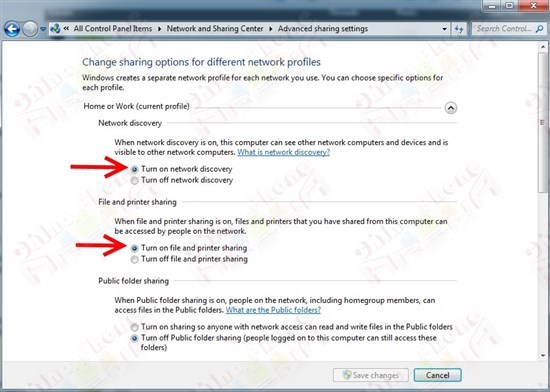
Go to Control Panel > Network and Internet > Network and Sharing Center > Change Advanced Sharing Settings.
Depending on how your PC is setup, you may not see �Network and Internet�. The bottom line is that from the control panel, you need to access Network and Sharing center, then Advanced Sharing.
Alternatively, click Windows Start button > in bottom search box type �advanced sharing� > select �Manage Advanced Sharing Settings�.
You should then see a screen as shown below. Select �Turn on network discovery� and �Turn on file and printer sharing�
Make note of your user name and password on the PC you�ll be streaming video from. This is the same as what you would normally use to login to your PC.
Connect your PC and Android mobile phone to the same WiFi network
You have now passed the first stage of how to watch videos and movies and listen to music on your Android mobile phone via streaming from your PC. The next step is to setup BS Player.
Stage 2 � login to your PC from BS Player
Open BS Player on your Android phone
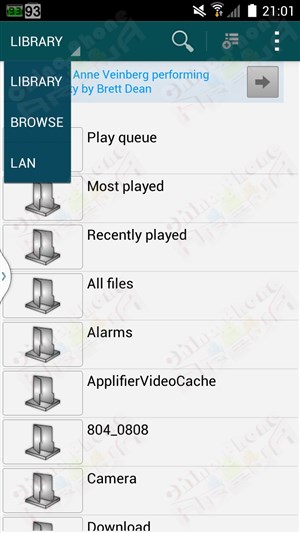
In the upper left you will see �Library�. Tap it and select �LAN�
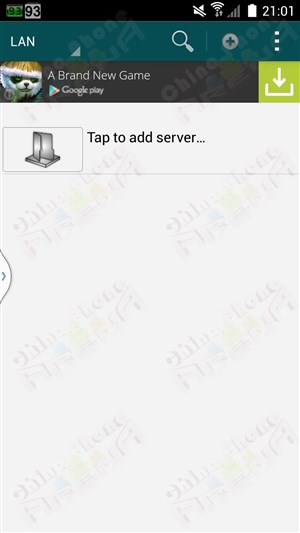
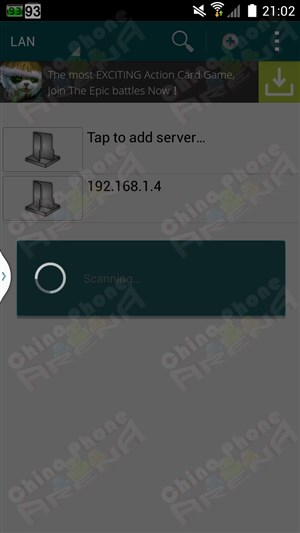
Tap �Tap to add server�
You will see it begin to scan the WiFi network you are connected to. As soon as the IP of your PC comes up, tap the back button as it doesn�t need to search further once it�s found it.
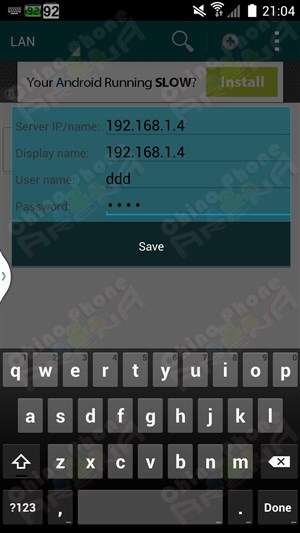
On occasion, it may take more than one try for BS Player to successfully find your PC. If it doesn�t find it, tap �Tap to add server� again. If it doesn�t find it after several tries, there is a manual option as well. Tap in the upper right hand corner where you see 3 dots > select �Add server� and enter your computer�s IP, user name and password. (How to find my computer�s IP?)
NOTE: If your PC changes IP in the future, for example if you reset your router or disconnect and reconnect the PC to your router, you will have to go through the scanning process again.
After the PC has successfully been found by BS Player, tap the network address of the PC you�d like to access and up will pop a box for you to enter your user name and password. After entering this info, tap �Save�.
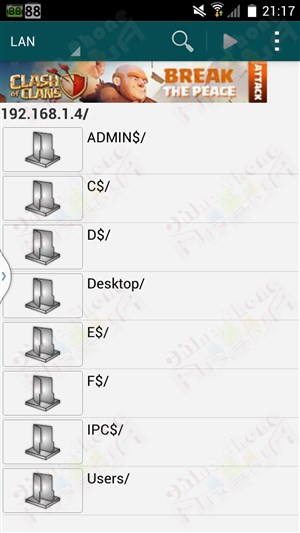
You should now be logged in to your computer through your Android device with BS Player. Navigate to the drive / folder / video you would like to play.
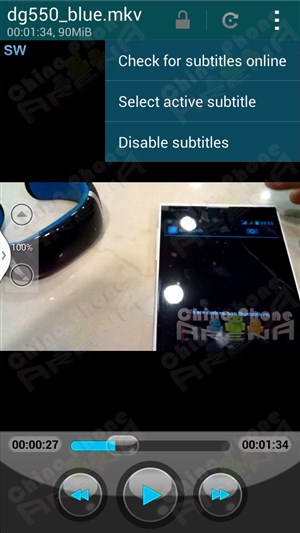
One of the awesome features of BS Player is the ability to search for subtitles online. It should automatically search for them once you begin playing the video. If it doesn�t, open the menu via the 3 dots in the upper-right corner, or tap the menu button and select �Subtitles� > �Check for subtitles online�.
NOTE: If you have subs already downloaded prior to using Android BS Player, make sure they are in the same directory as the video. If the subs are in a sub-directory underneath the directory the video is in, it won�t find them.
I�ve found this to be one of the easiest and quickest ways to play movies on Android. Once you�ve gone through the process once, it takes just a few seconds to access all of your video and music content on your PC and begin streaming them to your mobile. Of course, there�s more than one way to skin a beaver, and am very interested to hear your comments below on the various methods you use to stream.
Enjoy Guys! and don’t forget to post your comments. � MyTricksTime.com
There are several auto-root tools that work with older MTK devices and older versions of Android, but up until a couple days ago, there was no Auto-Root option for MTK6589 and the newer android versions (4.1/4.2)
So far this has been tested with Micromax A116, Wammy titan 2, Wammy Passion Y, Micromax A110Q canvas 2, Xolo Q800,Xolo Q1000, Zen Ultraphone 701 HD . Zopo C2,Zopo 980 , UMI, Gionee. We invite you to test this on unrooted ROMs on your device and add your results here and to the thread in the forum for future users.
Run run.bat from the extracted MTK6589 Auto Root folder
Press any key and wait while it roots your phone
After finished, now reboot
Bam, you�re rooted. Verify root with a �Root Checker� app from Play, or run any app you know requires root and you should see a root permissions request.
Enjoy Guys! and don’t forget to post your comments. � MyTricksTime.com