8 Tips to Improve the Battery Life On Your Nokia Mobile


Some friends of mine that are new to S60 have been experiencing battery problems with their Nokia mobiles. And after checking their devices I just realized that the problem was not the device, was the user!  Most of them have E71s, so battery life shouldn�t be an issue since this phone has a big 1500mAh battery. Basically the problem is that they don�t know how to use the phone correctly, and that is why I came with 8 tips to improve the battery life in Nokia devices.  This mini-tutorial is aimed at people new to S60, if you already have experience you probably already know everything!

1.  Make sure the GPS is off.
Don�t leave Google Maps, Nokia Maps, GPS Data or any other navigation application open. The GPS will be ON and you really don�t need it, this will improve the battery life.

2. Don�t leave many applications opened after you used the device and will put it back in your pocket.
Some people use the Red button to exit applications, and sometimes the Red button does not close the applications, it just sends it back. To exit applications press �Options� and scroll up to �Exit�. Another method is by long pressing the S60 button and just select the application (don�t click) and press the C button or Backspace button on the E71. This will close applications and will save battery life (note that �Menu� and �Standby� don�t close. I also advice to turn the phone completely OFF every once in a while.  (For example if you leave the Browser opened the Packet Data will also be turned ON, more details on tip #7)

3. Make sure WLAN Scanning is OFF
The shortcut on the standby screen for WI-FI is very useful, but just a click will turn the WLAN on and it won�t turn OFF until you do so. If you have your device in your pocket and the WLAN scanning is ON you are just spending battery life, turn it ON when you need it and turn it off by going > click > scroll down to Switch WLAN scan OFF.

4. Turn Bluetooth OFF
There is absolutely no reason to leave the Bluetooth ON everyday, although little, the Bluetooth does spend battery life. Check on the top right of your screen, if the Bluetooth logo is there you need to turn it OFF.  Go to Bluetooth and select OFF. (If you are using a headset its OK to leave ON the Bluetooth, but if you the battery just does not last you should turn it OFF and ON when using and not using)

5.  Set the E-Mail retrieval for longer periods of time
If you dont know what automatic retrieval is just go to the next tip.  Here there is little to explain, just set the timer a bit longer.

6.  Set the Screen Brightness to mid-level
The screen brightness comes by default to mid-level, but if you augmented it is better to have it in mid-level.

7. Packet Data must be OFF
Here is the most important tip.  This will happen in very few cases but it is very important. You have to set the Packet Data to �When Needed�. Go to Settings> Connection>Packet Data> and switch to �When Needed�.  If you already have it switched to �When Needed� and the Packet Data icon below the signal meter at the top left is ON (Two crossed pointers) then you have some application opened that requires the connection, close it. If anyway the connection is ON you can end the packet data connection by long pressing the Red button on the Standby screen

8. Update your Firmware
Every once in a while Nokia releases new firmwares for the phones. The firmware improve most of the time the battery life, to update your software go here:  Update your Nokia Mobile

So there are the 8 tips I can think off to improve the battery life on your device. I based on my friends that are new to S60, when I had a look at their devices thay had everything open and they don�t really need it. If you have something else to add just leave a comment and we�ll modify the title to:  9  Tips to Improve the Battery Life On Your Nokia Mobile!!

Facebook Timeline Cover: Create Hot Designs!

Facebook’s new Timeline profile design have almost replaced all old profiles and offers a complete different social touch. We have shared detailed tutorials on how to customize the look, colors and layout of Facebook and now its time to customize Facebook timeline Cover Photos. New creative ways of Changing the look of timeline is at its peak. Some online tools have been created that lets you to automatically generate a Cool Cover for your new profile. These generated covers fit perfectly in your timeline with proper width and height dimensions. Using these tools you can make amazing cover photos either using your memorable photos or a cool designed version of your Profile title or your name.

I am listing below 4 great website tools that will help you make beautiful Cover photos for your FB Profiles. Lets check them out then!

FB Cover PIX – Facebook Cover Gallery

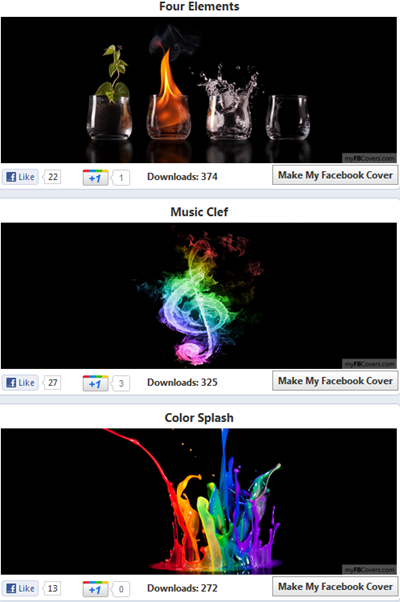
FB Cover Pix is created exclusively for uploading, exploring, and sharing cover photos that can be used on Facebook’s new Timeline profile design. It offers a large gallery of downloadable images which you can upload to Facebook and add them as your cover pages.

myFBCovers – Facebook Cover Gallery

myFBCovers is an interesting site that does not only allow you to create a Facebook Cover but you can also share your personalized cover with myFBcovers members and can expect to win a cash prize up to $50 per week and $100 per month if your cover gets the most downloads. You can also take inspiration from thousands of cool designed covers and can see which colors and design is downloaded the most. I am going to design one, will you? 🙂
It allows you to crop and adjust your cover size. You can also add effects like Polaroid and panorama. It has all possible Cover categories like Abstract, nature, celebrities, holidays and much more!
design facebook cover

TheSiteCanvas – Generates a Profile Cover

generate a Facebook Cover
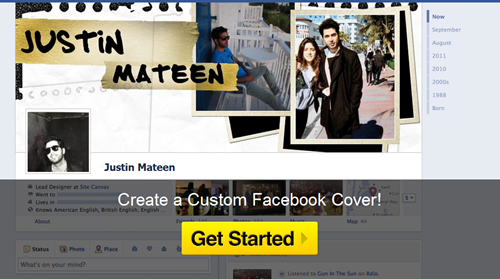
The intro image that you see at the top of this post is created using thesitecanvas. It is my favorite because it lets you convert your simple Facebook Name into a beautiful Movie like Title Design. You can select which design would you like for your name or can you can even choose your photos to give them a unique look and pattern. Do try it out!

Facebook Profile Covers

Facebook cover designs
Facebook Profile Covers also lets you choose a Design cover for yourself out of 1000 available profile covers. It is pretty much similar to myFBcovers but it does not offer any cover Contest. You can only create and download your designs but can not make Money online with your covers. It is still worth try due to its beautiful colors and variations.  It though contains a watermark on all designs.
I hope you find these tools helpful in branding and personalizing your timeline layouts. I will be posting more on customizing Timeline profile. Peace and blessings pals! 🙂

Easiest Way to get your own Airtel Number Displayed


Well if you forgot your own Airtel number and you want anyone to tell you that what it was, well then your own phone can show you your real number without any problem as there is a small code which when dialed will show your own number. Check below screenshot how I just dialed and got my own Airtel Number shown to me right on my screen.

So now you can see how my number is displayed in the last shot in above image, so I just blurred that number well now you can see your own number right over there very easily just you have dial *400*2*1*1*0# and than call or dial if you are on iPhone, now you will a message Welcome to Airtel money and blah ! blah ! now dismiss that message and you will another message saying that Recharge your own mobile number xxxxxxxxxxx and that�s your number.

Enjoy Guys! and don’t forget to post your comments. � MyTricksTime.com

Download fonts for Samsung Galaxy phones – Fontomizer

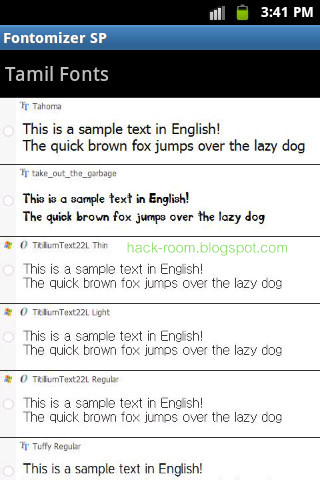
Do you ever want to change your Samsung galaxy’s fonts. There are many fonts specially mede for galaxy series phones are available through fontomizer. It’s an application that supply font packages for Samsung galaxy devices such as Galxy ace,Galaxy Tab, POP, FIT, S, SII etc. The fontomizer application can be downloaded from android market. No root access is required to install these fonts.

How to get these free fonts for galaxy?

  • Search ‘Fontomizer’ on android market and download one listed ‘Fontomizer SP’
  • After installing the app, open it.

  • Make sure that you’ve checked “unknown sources” option under Settings > Applications
  • From the app menu, click a font what you want to use. 


  • ow it ‘ll show a download procedure. Just download the file to your memory card.
  • Open your file manager and locate the downloaded file. Install the apk by clicking it.
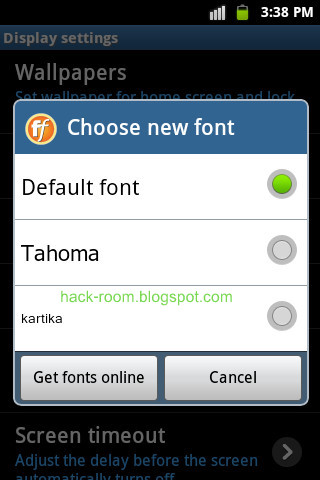
  • After installing the font apk, goto Settings > Display > Font style.
  •  The installed fonts will be listed here, select required one and hit OK. 


  • Restart your Phone.
Note: I dont tested it on phones other than galaxy.

Increase your Tata Docomo gprs speed

Increase your Tata Docomo gprs speed

Tata Docomo gprs in a high speed internet in mobile and pc Recently the speed of gprs browsing has been
decreased , how to
increase the speed in docomo gprs ?
this is the question for all of as
Me too using docomo for
gprs and the speed in quit
super receiving 32kbps the speed of gprs depends on
the mobile versions for
new version mobiles speed
is great compared to older type mobiles 

Follow this to increase
the speed : 

1.Goto menu �>settings- >phone�> network 
2.In network mode switch
to �dual mode� 
3.save it use access point as�TATA.DOCOMO.INTERNET � 
Now restart ur mobile to
get a increased speed on
internet mostly the speed
in gprs in very high at
midnights enjoy