Renaming multiples files on your Windows computer is easy

Renaming multiples files on your Windows computer is easy. Select all the files, press F2 and type some descriptive text. Windows will append a unique sequence number to each of the file names.
That’s a fairly quick solution but not very flexible because you don’t get to specify any choices or criteria.
For instance, how do you append the current date to the filename ? Or you want to replace only certain words in the file names (like a spelling error)? Or you want files to follow a different renaming system like file-A.jpg instead of the default file(1).jpg.
To rename files in bulk more efficiently, you can either learn some complex shell scripting language (SED, AWK, Perl) or switch to something more simple  – a spreadsheet.
dos-commandsStep 1: Type cmd and switch (using “cd” command) to the directory that contains the files you want to rename in bulk.
Step 2: Type “dir /b” to see a skeleton list of all files in the current directory. Copy that file list to the clipboard by selecting Mark from the contextual menu.
Step 3: The fun starts now. Fire your copy of Microsoft Excel or Google Docs Spreadsheets and paste those file names into the first spreadsheet column.
Step 4: In the blank adjacent column, add a corresponding Excel function – for instance, use SUBSTITUTE to change specific text in the filenames, use CONCATENATE() with DATE() if you want to add date to the filename, etc.
rename multiple files
*For more complex criteria, you may want to put the file extensions in a separate column by splitting the file name using period (.) as the delimiter.
Step 5: Your source filenames are now in column A while the Destination files are in column B – we will now convert this into a DOS rename command.
In Column C, type the following Excel formula and your command is ready to be executed.
=CONCATENATE(“ren “,A1, ” “, B1)
windows-rename-command
Copy paste the same formula across all cells in column C for which you have corresponding values in Column A or B.
We are almost done. Copy all the values from column C to the clipboard and paste them inside the DOS window or better still, put them inside a new text file and give it a name like rename.bat.
rename-batch-commandExecute and all files that match the criteria are renamed instantly.
More useful DOS Commands

7 Nokia Secret Code for you

Here’s the top most seven Nokia mobile phone secret codes for cell phone lovers who want to touch up things easily. Just type the codes as shown below then you will get the result in real time
Codes:
1.     *#06# 

– To check your mobile IMEI

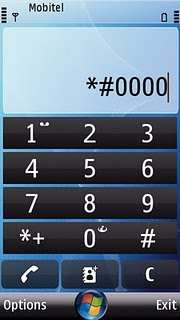
2.     *#0000#  – To check Your mobile software version

3.     *#2820# – Find Bluetooth device address

4.     *#746025625# – Sim clock allowed status

5.     *#92702689# – This gives you the secret menu where you can find your nokia serial no. , Month and Year of Manufacture, date of the last repair, date where the phone was purchased, phone life time.

6.     #pw+1234567890+1# – Shows restrictions affected by your sim.
7.    
*#67705646# – Clears operator logo from lcd.

Enjoy Guys! and don’t forget to post your comments. � MyTricksTime.com

Airtel Free 2G 3G GPRS Trick June 2012

Hello Frndz today am give you A Airtel Free 2G 3G GPRS Trick Using Fast Proxies  use the proxies And enjoy free gprs  on your mobile And pc

Setting :-
Port : 80
Home Page :- http://www.google.co.in/  ,  http://www.MyTricksTime.com/  

proxy = Download proxy list click on downlaod button 
                                                   
Downlaod here

Enjoy Guys! and don’t forget to post your comments. � MyTricksTime.com

Password Protect Your Usb Drive without any software

Hello Friends.
Now You can protect your USB of Pendrive data without any software. but this trick will give you strong protection like a software. Carry usb along with us, It�s always a good idea to carry your important files in a usb instead of carrying the whole laptop. But we don�t like everyone can check our files on usb. So i use a password for anyone who tries to access my ubs drive. It also helps to secure my data from wrong hands in case of theft.

There are lot of software’s out there(most of which are paid apps) to help you with this but if you�re using windows you don�t need any app. Here�s what you have to do to password protect your usb flash drive.
>> Plugin your USB, click on Start & type BitLocker Drive Encryption and launch that app.
>>  Now look for your drive and click on Turn on Bitlocker. Windows will ask you for a password, give it one and click �next� and save the password somewhere safe if you want.

Next time anyone tries to access you usb, he�d have to crack the password
Enjoy Guys! and don’t forget to post your comments. � MyTricksTime.com

Trick to Install Windows 8 Using Usb Flash Drive

Few days back Microsoft released its much hyped product Windows 8. You can install this for free and you can do this in two ways. You can either use a installer or you can download the ISO file. Unless you have a insanely high speed internet connection, your computer will literally choke during installation. So using a iso file is the best option available, by which you are supposed download the iso file and burn it to a DVD and boot from it.

But why waste a DVD when you use any old >=4GB usb drive for it. There are lot of programs to do this but i�ll teach you how to do this easily without using any of them. With this tutorial you can install any OS on your PC using a USB pen drive.

> Download and install WinRAR from web. Extract the .iso file you�ve downloaded using this. Press Win+R, type cmd and press Ctrl+Shift+Enter.
> Copy Paste diskpart and hit enter. Later copy paste list volume and hit enter. Now observe the volume number of your USB drive, for the sake of tutorial lets say its 5. Also note down drive letter lets say its D.
> Now copy paste select volume 5 and hit enter. Copy paste active and enter. Again copy paste exit and enter. We�re almost Done.
> Right click on extracted iso folder, select properties and copy paste the folder location form there to command window. Press enter, copy paste cd boot and enter. And as final touch copy paste bootsect /nt60 d: where d is the drive letter of the usb it told you note down in 2nd step.
All done, you have made your usb pen drive bootable. All you have to do is copy the extracted folder contents to this usb and restart your PC and It�ll boot from the usb.
If it doesn�t use bad words for me and reboot the system and enter the BIOS mode(for this you have read the message at bottom of screen while pc starts). Change the boot priority to assign highest priority to Removable Device/USB Device. Save changes and restart again.
Just in case if it asks for a key use
 NF32V-Q9P3W-7DR7Y-JGWRW-JFCK8.

Enjoy Guys! and don’t forget to post your comments. � MyTricksTime.com