Review of Sony Vaio E-Series – VPC-EH2N1E

The Sony Vaio E-Series – VPC-EH2N1E laptop is composed of a 500 GB hard disk and 4 GB RAM along with an Intel i5 processor that has a speed of 2.4 GHz. Microsoft Windows 7 Home Premium operating system is entitled to operate this laptop. Intel HD graphics card and a sound card add value to the output. The multi-touch track pad lets few fingers run over it and allows some special input through this track pad. The laptop uses a 15.5 inch Vaio display and also has a camera fabricated to the laptop. Ports for USB, HDMI, SVideo, digital media reader are all available on this laptop.


Sony Vaio E-Series – VPC-EH2N1E Price India
Price: Rs. 25000 – 30000


Technical Specifications of Sony Vaio E-Series – VPC-EH2N1E
Processor Make Intel
Processor Name Intel Core i5
Cache Memory(KB) 3072
Front Side Bus 1066
Processor Speed(MHz) 2400.00
Processor description Intel Core i5-2430M
System Memory Standard RAM (GB) 4
Upgradeable RAM (GB) 8.00
Hard Disk Drive (HDD) Installed Capacity (GB) 500.00
Optical Drive CD ROM Drive Yes
DVD Drive Yes
DVD Writer Drive Yes
Display Screen Size (Inches) 15.50
Maximum Display Resolution (dpi) 1920 x 1200
Screen Type VAIO Display
Video Display Card Video Display Card Intel HD Graphics 3000
Video Card Make Intel
Memory Type DDR3 SDRAM
Internet Utilities Internal Modem NA
WiFi Yes
Multimedia Info Sound Card Yes
Sound Card Make NA
Microphone Yes
Speakers Yes
Security Fingerprint Reader No
Web Cam Builtin Camera Yes
Resolution (Mega Pixel) 0.30
Ports and Cards Interfaces SVideo 1
USB Port 4
Bluetooth 1
Digital Media Reader 2
Hdmi port 1
Laptop Measurements Width (mm) 369.80
Depth (mm) 248.40
Height (mm) 31.30
Weight (Kgs) 2.70
Battery Battery (Type) Lithium ion VGP-BPS26
Battery Life (Hours) 4
Input Devices Keyboard Type Normal
Touch Screen No
Touch Pad Type Multi-Touch
Type of Mouse Normal
Miscellaneous Operating System Windows 7 Home Premium 64-Bit
OS description Genuine Windows� 7 Home Premium 64bit
Colour Options Black, White
Warranty (Years) 1

Enjoy Guys! and don’t forget to post your comments. � MyTricksTime.com

How to use your Android as a Webcam


Webcam is one of the best inventions which have bettered the online communication process. When you chat online with dear ones, you can�t do without a webcam because it helps us see each other. I have always loved it because I�ve not been lucky enough to stay with my family since I joined college. I know many of you are like me. Skype is our virtual home and the webcam is the door to the home. Imagine you are online, chatting with your old friend. And your friend wants you to video chat. One quick glance at your webcam tells you that your pet has taken the liberty of using it as a teether. Does it spell disaster? Definitely not, if you have an Android device. You can easily use your Android device as a webcam at such times. With an Android device, you can make the best of both worlds. I was in such a situation and wandered around the Android App Store in search of an app that would help me out. Alas! The search ended soon and I found two helpful apps. I�ll explain both and you can use what you find to be comfortable.
Requirements:
These are the common requirements for both apps.
  • You need to have internet connection on both your PC and phone.
  • You can also do it using USB on your phone.
App 1: IP Webcam
  1. Install IP Webcam and IP Camera Adapter on Windows. You will have to use Firefox or Chrome. It doesn�t work properly with the default Internet Explorer. (This is a free app so you will not need to spend a single penny on it.)
  2. Open the IP Webcam app and adjust the settings. You need to choose the resolution, quality, FPS limit, and orientation as per your video needs.
  3. Once you finish this, tap on the Start Server button. It will open a window where you can set your Username and Password. Setting a username is recommended as the adapter sometimes might not allow you to open it without login credentials.
  4. You will find the IP address at the bottom of your device. Ensure that the port number is also visible.
  5. The next step is to choose the video size you would like to have. I�ve tried the Browser built-in viewer.
  6. Now it�s time to open the IP Camera Adapter. Here, you will have to feed information such as your IP, username, and password.
  7. Using the Autodetect button, select the optimal resolution settings for your video. Click on Apply once you�ve adjusted all the settings.
  8. You will have to restart the applications such as Skype, Windows Live, etc., in which you want to use this makeshift webcam.
Note:  Remember:
As it doesn�t render good quality audio, you will have to use your headset for uninterrupted audio. Using it as a webcam will drain the battery charge. Therefore, plug in the device while using it as a webcam.
App 2: DroidCam
  1. Download DroidCam from Android App Store. Click here to go to the website.
  2. It works only on Windows or Linux operating systems. Therefore, choose it only if you use one of these two.
  3. Open the app and wait until you get the �Idle� message. It will appear at the top right corner of the app.
  4. Open the DroidCam program on your PC and configure the settings in the window that appears.
  5. Type the IP of your computer. You needn�t change the port number.

You can now start using your Android device as a webcam. It works for you? Good! But don�t be overwhelmed at this new use of your Android phone and ditch your webcam if it is in good shape. You will need it in the future when you want to have a perfect video quality without any interruptions. This is just a makeshift use of your Android device, it can�t surpass a proper webcam. Find something that can work as a latch to hold your device in the landscape position. Otherwise, you will have to hold the device throughout the chat session. Finding a good latch was more challenging than setting it up as a webcam, so my device kept on sliding and tilting as it didn�t get a good latch to sit on. It�s good for informal conversations with friends and family. However, don�t try to settle down with this if you are attending a virtual business meeting with your client or a higher official.
Enjoy Guys! and don’t forget to post your comments. � MyTricksTime.com

Whats New in Nintendo Wii U

Nintendo Wii U is packed with innovative features andit is all set to hit the U.S. market on Nov 18.  Nintendo�s new system plays catch-up with Sony and Microsoft and aims at tempting gamers back from the internet and mobile devices.
Whereas other contemporary video game consolesare now forthcoming to the six and seven years mark respectively since release, Nintendo has been the most popular console cycle to jump on the eighth generation of console wagon.
An Overview of the Nintendo Wii U
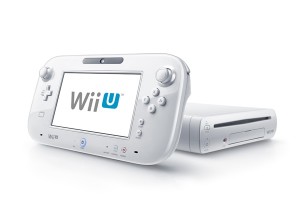
The new console looks sleek, small and plain in terms of design, but is empowered by an IBM multi-core processor and is compatible with 1080p HD Graphics. The new console will be marked by a little difference from its competitors if we only take into account its visuals and processing power. However, in addition to graphics, it is the controller that has literally tempted everyone to count down the few remaining days for its launch.
Wii U Controller
The innovative Gamepad, termed by the manufacturer as the �Wii U controller�, looks akin to a tablet pc. However,in addition to featuring a simpletouch screen, the Gamepad features a handsome array of controls and buttons, such as: Power buttons,XBAY buttons, Dual Analogue sticks, Triggers, Bumpers, TV, Home and Volume control. The controller comes with anattractive 6.2? touch screen having the capacity of displaying at 16:9 aspect ratio.
What is probably the most impressive feature of Nintendo Wii U is it enables you to enjoy playing your favorite games on the new controller, without having to connect it to a monitor or television screen, and even that with a range of 30 yards approximately. Just imagine you areand busy in the middle of your room beating Bowser�s head on Mario and someone demands you to bring a glass of water from the refrigerator, you can leave your place by switching your main screen from the television set to the tablet screen and keeping on with your Bowser beat down.
What is included in the Wii U Packs?
Basically, it has been unveiled that the device will come in two different packs: basic and premium.
Basic Pack will include:
  • A white colored console having 8GB built-in storage memory and a white GamePad
  • An HDMI cable
  • AC adapters for both the console and the GamePad.
The Premium Packageof the console will include:
  • A black console empowered with 32GB of internal storage memory  along with a GamePad
  • A charging cradle for the GamePad
  • A stand for the console and GamePad
  • AC adapters
  • AnHDMI cable and
  • The Nintendo Land software.
ASpecial Reward Programme
It may also be mentioned here that the premium pack comes with a special reward programme that offerspoints to its worthy clients on every digital purchase made in the Nintendo�sonline Shop. Each point is worth 10% of the regular retail price, and you can make use of this credit against future purchases as soon as it reaches 500 points minimum.
Expected Price
As far as the price is concerned, it will be available at just under $300.Sounds expensive? Rest assured you will receive a console and a standalone Gamepad tabletalong with 23 original Wii U games�all in one pack. With its exciting features, the price should not be a hindrance toward satisfying your passion for games.
Guest Post from Theresa Moyer. Theresa writes for GoToGiftBaskets.com.
source:www.goharsh.com/computer/whats-new-in-nintendo-wii-u

Enjoy Guys! and don’t forget to post your comments. � MyTricksTime.com

Whats new in windows 8

Despite certain criticism, Windows OS is the world market leader over the last dozen years. Microsoft�s creative ideas, constant improvements and innovations let Windows users be in touch with the newest tendencies in software technology. Having impressed the world with their Windows 7, Microsoft has continued developing brand new multi-platform desktop environment.
This fall (October, 26) new Windows 8 is finally ready to go. From the revolutionary �Metro� interface to the new level of security and privacy, Windows 8 is a solid example of innovative and all-embracing product. Although, the new OS features require deeper research, we�ll try to review most outstanding Windows 8 capabilities and improvements in brief.
Windows 8 targets both PC�s and ARM devices
This is in fact the first OS edition compatible with both traditional x64/x86 PC�s and mobile devices based on ARM architecture. Unlike desktop and laptop computers, tablet device sales have increased over 2011-12. That is why Microsoft takes a chance to boost their market share in a growing niche. With sensor and touchscreen options, new Windows 8 will hit mobile device market in November, 2012.
Windows 8 �Metro� Interface
This time, Windows interface became radically different � tiles are colorful and eye-catching. As mentioned above, Windows has been completely remodeled in the attempt to step away from everlasting desktop mode. Such mobile-oriented implementation gives the opportunity to experience new system with both touchscreen and mouse/ keyboard controllers. As to the Windows 7-style programs, they will start in traditional �desktop mode�. It means that you can easily switch to a traditional interface if needed.
New Start Screen
A new user experience begins with a �Start Screen� replacing �Start Menu�. You can reach it by pointing your mouse cursor to the bottom left corner (alternatively to �Start� button) and launch any of the installed applications. No more trivial icons � you will navigate through the mosaic of tiles that contain brief application info. Therefore, you don�t need to launch application just to learn more about it � very convenient.
�Charms� bar
Windows 8 Charms bar gives you a quick access to the following frequently used features like Search, Share, Start Screen, Devices and Settings. It�s available when pointing your mouse to the top or bottom right corner or you may alternative use Win+C hotkey to activate it. Charms bar is accessible system-wide no matter where the user is currently located in the OS. The Search feature allows you search online directly from the Charms bar � no need to start the browser. Another great feature is Sharing � your E-mail, Twitter and Facebook accounts has never been closer to you.
Windows Store
This is a place where users can officially acquire free or paid software from third parties. Currently, the Store is opened for developers who are encouraged to submit their Windows 8 applications for approval. Microsoft is focused on building the greatest application store online. The developers will be rewarded withup to 80% sales commission.
User Login features � new lock screen
Windows 8 offers a new creative way of user authorization on PC�s and mobile devices known as a picturepassword. In order to login, the user will have to �draw� certain gestures or shapes on a device screen. You will have 5 attempts to login this way, otherwise the system will require a password.
As you can see Windows 8 is full of brand new features to discover. If you�re a Windows 7 user, there is a two ways to upgrade � click here to visit the official upgrade resource.
This article is brought to you by a tech-savvy D. Blackthorn � a software enthusiast, digital audio and video specialist who is currently interested in iTunes conversion software.source:www.goharsh.com/computer/whats-new-in-windows-8/

Enjoy Guys! and don’t forget to post your comments. � MyTricksTime.com

How To Root Samsung Galaxy Pop S5570


hello friends !!!!
Its been 3 days since my last post since i was busy with my term exam…
Now as per users request i am posting this tutorial for rooting your samsung galaxy pop 

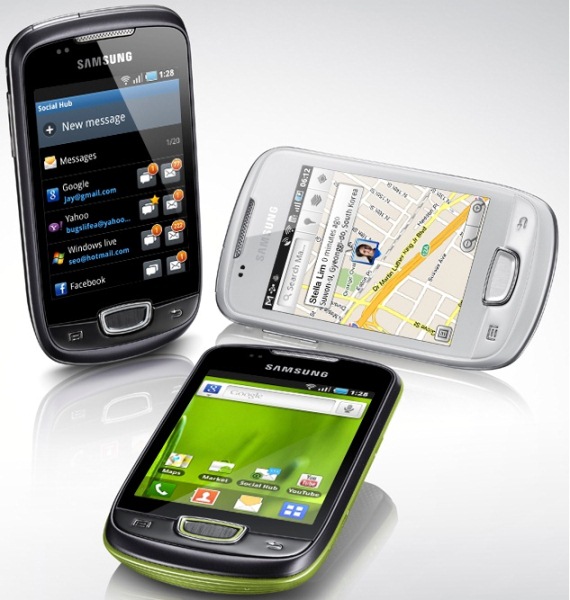
Samsung Galaxy Pop is yet another budget Android phone just like the LG optimus Me or Samsung Galaxy Y. There has been an official update for this phone which lets you run Android 2.3.6 on your device. So if you are still on Froyo, make sure you update it to Gingerbread. (If you haven’t updated a

Steps to Root Samsung Galaxy Pop S5570

1.Download the rooting Package Here

2.Copy the rooting package zip file to the root of your SD Card. Make sure
you do not extract the contents of the zip file. Just copy the zip file
to your SD Card. The reason why you should copy it to the root of your
SD Card is that you need not search for it when you are in recovery mode
and it becomes quite easy to flash the zip file.

3.Boot your phone into recovery. To do this, turn off your phone and press
the OK button and Power button. You can release the buttons when you
see the Samsung Logo to enter the recovery mode.

4.From the recovery menu, select �Apply update from SD Card� and choose the zip file you downloaded in step 1.

5.Flash the zip and then choose �Reboot system now� option.

6.After your phone reboots, check if you have the superuser Application installed.

In this way, you can easily root Samsung Galaxy Pop S5570.

Enjoy Guys! and don’t forget to post your comments. � MyTricksTime.com