All In One SEO Pack Pro Version Free Download

All In One SEO Pack-Pro Version Is Most Downloaded WordPress Plugin,
This Plugin Optimizes Your WordPress Site For Search Engines.
New Bloggers And Not Ready To Buy Premium Plugins,
Many Bloggers Are Facing money Problem And Not Able To Buy Premium Plugins.
The Price Of This Premium Plugin Is Around 39$
But Don�t Worry Friend�s, Trickshunt Team Giving You This Plugin Totally Free.

#Before You Download Take A Look Below On It�s Features:-
  • Generates META tags automatically
  • Avoids the typical duplicate content found on WordPress blogs
  • For beginners, you don�t even have to look at the options, it works out-of-the-box. Just install.
  • For advanced users, you can fine-tune everything
  • You can override any title and set any META description and any META keywords you want.
  • Canonical URLs
  • Fine tune Page Navigational Links
  • Built-in API so other plugins/themes can access and extend functionality
  • ONLY plugin to provide full SEO Integration for WP e-Commerce sites
  • Nonce Security
  • Support for CMS-style WordPress installations
  • Automatically optimizes your titles for search engines.
Friend�s Don�t Forget To Say Thanks In Comments.
Click On Below Button To Download.

Enjoy Guys! and don’t forget to post your comments. � MyTricksTime.com

Best Working Trick To UnFollow All Your Twitter Followers At Once

We all have accounts on twitter and many other twitter users follow us on our TWITTER ACCOUNTS. But many-a-times we all don�t want them following us all the time and just want to unfollow all of them. So previously we all had many add-ons and applications which would help us to unfollow all our followers. So today i have hardly found an easy and working way to unfollow all Twitter followers at once. Sometimes you have some problem with all your followers then you just need to find a way to unfollow all of them. Then this post is specially for your concern.
Officially unfollwing at once was not available to be done on twitter. But know it can be done using manage FlitterThis can be done using the following steps:
Step1: Open the ManageFlitter.com/Unfollow.
Step2:Then click on �Start using ManageFlitter�.
Step3: Then click on �Connect to Twitter�.Then enter your details.
Step4:On the next screen you will see all your followers.
Step5:Then click on Show All, as shown in below image.
Step6:here you can see your Twitter Followers and you will see,you will need to click on each check box. Dont worry, you can do this by using the Check All extension for Firefox or Check them all for Google Chrome.
With these extensions you can only check 100 followers at a time. But it is a lot faster because if you have 500 followers the instead of cliking 500 times you just need to click five times and thats way too faster.
Obviously this trick takes a bit longer time than the original Twitter apps but you cant do anything better than this. So this is really a good trick and the best thing is that it is working.

4 Steps to Increase Your Blog Traffic

One of the most common complaints that I hear from bloggers is the fact that no matter how hard they try, they can�t grow their blogs past 100 or so daily page vies. Those early days are indeed the hardest, because you need to put hard work in without the certainty of achieving results.
If you are in that same situation, here is a simple strategy that will certainly increase your blog traffic and make you break the 1,000 daily page views mark. In fact, the strategy could be used even if your are already over that number but have reached a traffic plateau lately.
Just make sure to execute the 4 steps as planned and to spend the two hours and a half every day (obviously if you have more time available you can expand the time spent on each of the four steps proportionally).

First Step: Killer Articles (1 hour per day)

Spend one hour brainstorming, researching and writing killer articles (also called linkbaits, pillar articles and so on).
Notice that your goal is to release one killer article every week. If that is not possible aim for one every 15 days. So the one hour that you will spend every day will be dedicated to the same piece. In other words, expect killers articles to take from 5 up to 10 hours of work.
If you are not familiar with the term, a killer article is nothing more than a long and structured article that has the goal of delivering a huge amount of value to potential visitors. If you have a web design blog, for example, you could write an article with �100 Free Resources for Designers�. Here are some ideas for killer articles:
  • create a giant list of resources,
  • write a detailed tutorial teaching people how to do something,
  • find a solution for a common problem in your niche and write about it, or
  • write a deep analysis on a topic where people have only talked superficially
When visitors come across your killer article, you want them to have the following reaction: �Holy crap! This is awesome. I better bookmark it. Heck, I better even mention this on my site and on my Twitter account, to let my readers and friends know about it.�

Second Step: Networking (30 minutes per day)

Networking is essential, especially when you are just getting started. The 30 minutes that you will dedicate to it every day could be split among:
  • commenting on other blogs in your niche,
  • linking to the posts of bloggers in your niche, and
  • interacting with the bloggers in your niche via email, IM or Twitter.
Remember that your goal is to build genuine relationships, so don�t approach people just because you think they can help to promote your blog. Approach them because you respect their work and because you think the two of you could grow together.

Third Step: Promotion (30 minutes per day)

The first activity here is the promotion of your killer articles. Whenever you publish one of them, you should push it in any way you can. Examples include:
  • letting the people in your network know about it (don�t beg for a link though),
  • letting bloggers and webmasters in relevant niches know about it,
  • getting some friends to submit the article to social bookmarking sites,
  • getting some friends to Twitter the article, and
  • posting about the article in online forums and/or newsgroups.
If there is time left, spend it with search engine optimization, social media marketing and activities to promote your blog as whole. Those can range from keyword research to promoting your blog on Facebook and guest blogging.

Fourth Step: Normal Posts (30 minutes per day)

Just like a man does not live by bread alone, a blog does not live by killer articles alone. Normal posts are the ones that you will publish routinely in your blog, between the killer articles. For example, you could publish a killer article every Monday and normal posts from Tuesday through Friday. Here are some ideas for normal posts:
  • a post linking to an article on another blog and containing your opinion about it
  • a post informing your readers about a news in your niche
  • a post asking a question to your readers and aiming to initiate a discussion
  • a post highlighting a new resource or trick that you discovered and that would be useful to your readers

While killers articles are essential to promote your blog and bring new readers aboard, normal posts are the ones that will create diversity in your content and keep your readers engaged.
Enjoy Guys! and don’t forget to post your comments. � MyTricksTime.com

How To: Use a laptop as a Wi-Fi repeater


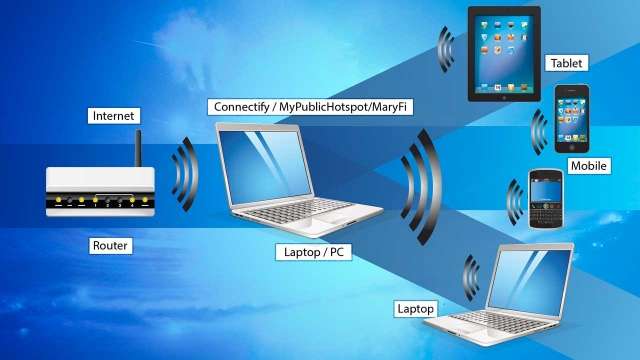
Almost all homes and offices today have an Internet connection either via a cable operator, telephone line or USB dongle. Sharing a single Internet connection with all other wireless-enabled devices at home or office requires a wireless router and these are available for as little as Rs. 1,000. But wireless routers are usually stationed at home or office and cannot be carried around because of the power requirements. There are times when you go on a holiday or travel around and need an Internet connection. USB 3G Internet dongles serve the purpose of an Internet connection whilst you are outdoors, but this connection is only available on your laptop or a tablet that has USB internet dongle compatibility. But what if you want your mobile or iPad also connected to the Internet at the same time? The Internet connectivity needs to be shared and a router is the only possibility. In this case, you will share the network connection of your laptop with the other devices and Ad-Hoc connectivity is the only option. But this method again has a limitation and only one device can connect at a single given time. We will show you how to create a temporary router using any laptop or PC within a few minutes. This will save you the cost of a new portable router.

Take another scenario where you are at home. You have your broadband connection and a router installed and configured. Your router is beaming out the Internet connection for all the devices you have. You need to chill out in your building premises with friends or monitor your children in the play area, while still using your mobile or tablet on the Internet. 
Now, you know that your home router will not be able to beam out the Internet to this distance and it will call for a relocation of the router to the balcony or the main door. But this is not practical and you will need to get yourself a wireless repeater, which will wirelessly relay the home internet to a further distance. This calls for an investment of a wireless repeater and they don�t come cheap. We will show you how to create a wireless repeater using any laptop or PC in less than Rs. 700.


In this How-To, we shall show you how simple it is to convert any regular laptop or PC into a wireless router or repeater using some freely available software. Before you begin, let�s take a look at the requirements.
  • A laptop or PC with Windows XP SP2 or higher operating system
  • A wireless USB adapter
  • Any of the following software: Connectify, MyPublicWiFi or MaryFi
  • An Internet connection (USB 3G dongle, broadband or DSL)
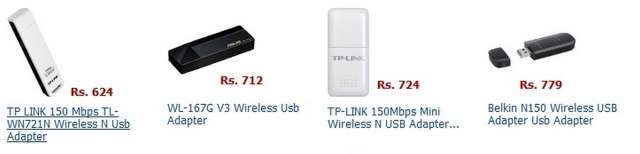
To convert any PC or laptop into a router, you will need the computer to have an Ethernet interface, a USB port and a wireless USB adapter or Wi-Fi network card. Laptops usually have all of the above, while desktop PCs will definitely sport the USB and Ethernet interfaces. Some newer desktop PCs have motherboards with wireless networking interfaces. If your PC does not have a wireless interface, then you will have to get a wireless USB adapter; these are available for as cheap as Rs. 700. Any brand will work fine as long as you install the drivers correctly.
To convert the PC or laptop into a wireless repeater, you will need two wireless network interfaces. In this mode, one wireless interface works as a client to receive the Internet from a wireless router while the other interface relays the same Internet connection to other devices. Laptops usually have a single wireless network interface and to make a repeater, you will need to install a wireless USB adapter. PCs will have to use two of the USB adapters.
Once you are ready with the hardware requirements, it is time to download the software. 
Download any of the following software from the Internet. These software utilities have the capability of converting a regular PC with an Internet connection into a wireless hotspot as a router or repeater. The software takes the Internet connection from the PC and shares it via the wireless interface, allowing other devices to connect and use the Internet from it. The download links are given below.
The entire procedure is very simple and will take you just a few minutes to configure and deploy. All you need is to download any of the above software, install it, restart the PC once if required and start the utility. Here is how you can configure each of the three utilities. We shall explain using Connectify as an example; you can also apply the similar methods to the other two utilities.
Router mode:

Step 1: Click the settings tab
Step 2:  Enter the SSID name or Hotspot name for your network. (free version has limited access to using the entire SSID name, while paid version users can specify any name)
Step 3:  Enter a desired 8 � digit password for securing the wireless network
Step 4:  Select the Internet line you want to share from the list in the �Internet to Share� drop-down list. This will be your Ethernet network or USB dongle / DSL dial-up connection.
Step 5:  Expand the �Advanced Settings� tab. Here, choose the wireless interface in the �Share over� drop-down list and choose the security mode for the network in the �Sharing Mode� drop- down list. Paid version users can have the option to set up the firewall and allow or disallow Internet and local network access.
Step 6:  Once done, hit the �Start Hotspot� button and your PC/laptop is now a wireless router. Connect your devices to the PC router using the SSID and password you just specified.


Step 1: Follow the same steps mentioned above, but just make a small change in the Step: 3where you will need to select the first wireless network interface in the �Internet to Share� drop-down list and the second network interface in the �Share over� drop-down list. Do make sure that your first wireless network interface is already configured to connect to the host router for an Internet connection.

Using the other two utilities is very similar and takes a few seconds to implement. There may be many more similar utilities that can do the same and if you stumble on any of them, do mention it in the comments below for the benefit of other readers. If you are using any of these or other utilities and find out any issues or tweaks to make it function better, please post your comments too.

Enjoy Guys! and don’t forget to post your comments. � MyTricksTime.com

Facebook trashes fake accounts, users, and likes,

The purge has commenced. Facebook is throwing out all fake users, accounts, and likes. That’s right, all of those thousands of questionable thumbs ups are starting to disappear.
The social network announced last month that it’d start this massive deletion process, but it was unclear when. According to TechCrunch, Facebook confirmed today that the time is now.
Over the course of the day, tens of thousands of fans were quietly dropped from
Facebook Pages. Data from Facebook metrics site PageData shows that
 

Zynga’s Texas HoldEm Poker lost 96,000 fans today, while Rihanna lost 22,198, and Michael Jackson lost 17,591. Even the Facebook like champion Eminem had fans vanish today — his count dropped by 15,420.

Facebook said last month that the reason it was sweeping its site of phony activity was to cut down on suspicious likes and make sure that users were dealing with real people and businesses.

MyTricksTime contacted Facebook for more information and we’ll update the story when we hear back. 

Despite cleaning house, the social network has said that most pages will see less than 1 percent of likes removed. As long as users go by the rules and haven’t indulged in buying likes from shady sources, the difference should be minimal.

In the end, this eradication should come as good news to most users because it means less spam and phishing on the social network.

MyTricksTime contacted Facebook for more information and we’ll update the story when we hear back.
Enjoy Guys! and don’t forget to post your comments. � MyTricksTime.com