Increase blog traffic using powerful meta tags

This is a very useful article for all bloggers,every blogger had a dream that their blog got higher rank in Google or other search engines.Adding meta tags to your blogger blog help you to increase blog traffic.The meta tag helps the search engine to find appropriate results,This is a powerful Search Engine optimization(SEO) method used by popular websites and blogs.

Within a few steps you can add powerful meta tags by following the below steps


  • Sign In to your Blogger Account
  • Take Design tab in your blog dashboard
  • Select Edit HTML
  • Add the following code inside <head> section

<b:if cond=’data:blog.url == data:blog.homepageUrl’>
<meta content=’Place blogger description here‘ NAME=’description’/>
<meta content=’Place your blog’s keywords here(seperated by commas)
NAME=’keywords’/>
</b:if>

Replace the Red text by your blog’s description and keywords and place it inside <head> section.Now your blogger blog meta tags are placed.The Blogger description you placed in meta tag description will display as the description of your blog in Google search results(as shown in the figure).

Now day by day there are so many blogs are arriving on internet.This powerful meta tag technique will help you to go your blog success.

Enjoy Guys! and don’t forget to post your comments. � MyTricksTime.com

Kill a Process in Command Prompt in Windows 7/XP

Q. How to kill/stop a Process a process in windows using Command Prompt ?


Killing or terminating a process without a task manager is possible using “taskkill” commands in Windows operating systems like Windows 7, 8, XP, 2003, 2008 servers. Taskkill is a powerful  command to kill or terminating (forcefully) any running process.


Windows Kill a Process by Process Name


Windows Kill a process by pid (Process ID)
Click Here to learn How to find Process ID in Windows
C:>taskkill /PID 1372

Enjoy Guys! and don’t forget to post your comments. � MyTricksTime.com

How to Improve Graphic 3D performance in Samsung Galaxy phones

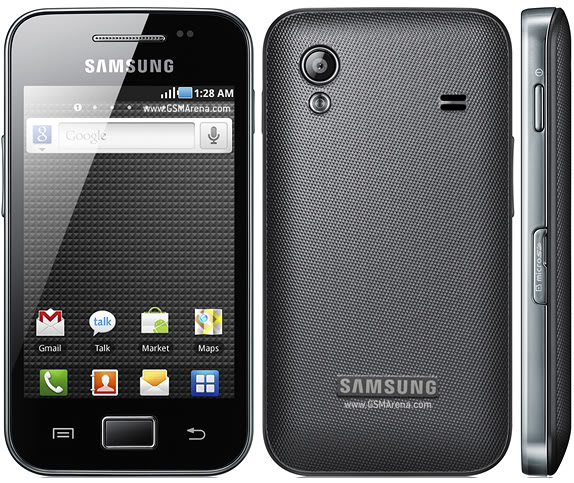
3D graphics performance on Android devices has increased dramatically in the last year or so. Some newer phones have very impressive bench mark scores, and many don�t even break a sweat while playing high quality games or emulators for consoles like Playstation and Nintento 64. Some older devices such as the Samsung Galaxy Ace don�t have that kind of power, though, and require some help.

have ported a method that will help increase 3D graphics performance. The modification process is a relatively, and involves deleting the libGLES_android.so file from the phone, flashing the modified Adreno Lib files, and giving the build.prop a few tweaks to get everything running.

The end result is a GPU that renders 3D faster than it did previously. As always, make a complete backup before attempting anything, just in case something bad happens. For now, the tweak has only been tested on a couple of ROMs, but should work for any Gingerbread based ROM.

# Instruction 
Step 1Dowload this files

Step 2 : Place this files in your SD card.
Step 3 : now press and hold +volume key, Home Key and Shutdown side Key
Step 4 : Phone will restart automatically and start with recovery mode
Step 5 : select update firmware [second option] 
Step 6 :  It will show file browser, browse and select files which you have download
Step 7 : It will Start updating your phone
Step 8 : After successfully updation you can run your HVGA games easily in your phone

# Warning : 
using this method you are rooting your mobile phone, MyTricksTime.com is not responsible for that 

Enjoy Guys! and don’t forget to post your comments. � MyTricksTime.com

Sound Recorder in Android Development

This example shows how to record sound and save it to SD card it.
Algorithm:


1.) Create a new project by 

File-> 
New -> 
Android Project name it SoundRecorder.


2.) Write following into main.xml:

<?xml version=“1.0” encoding=“utf-8”?>
<LinearLayout xmlns:android=“http://schemas.android.com/apk/res/android”
    android:layout_width=“fill_parent”
    android:layout_height=“fill_parent”
    android:orientation=“horizontal” >     <Button
        android:id=“@+id/start”
        android:layout_width=“wrap_content”
        android:layout_height=“wrap_content”
        android:text=“Start Recording”
        android:onClick=“startRecording” />
    <Button
        android:id=“@+id/stop”
        android:layout_width=“wrap_content”
        android:layout_height=“wrap_content”
        android:text=“Stop Recording”
        android:enabled=“false”
         android:onClick=“stopRecording”
        />
</LinearLayout>


3.) Write following into manifest file:

<manifest xmlns:android=“http://schemas.android.com/apk/res/android”
    package=“com.example.soundrecorder”
    android:versionCode=“1”
    android:versionName=“1.0” >     <usessdk
        android:minSdkVersion=“8”
        android:targetSdkVersion=“15” />
    <usespermission android:name=“android.permission.WRITE_EXTERNAL_STORAGE”/>
    <usespermission android:name=“android.permission.RECORD_AUDIO” />
 
    <application
        android:icon=“@drawable/ic_launcher”
        android:label=“@string/app_name”
        android:theme=“@style/AppTheme” >
        <activity
            android:name=“.SoundRecorder”
            android:label=“@string/title_activity_sound_recorder” >
            <intentfilter>
                <action android:name=“android.intent.action.MAIN” />
                <category android:name=“android.intent.category.LAUNCHER” />
            </intentfilter>
        </activity>
    </application>
</manifest>

4.) Run for output.
Steps:


1.) Create a project named SoundRecorder and set the information as stated in the image.
Build Target: Android 4.0
Application Name: SoundRecorder
Package Name: com. example. SoundRecorder
Activity Name: SoundRecorder
Min SDK Version: 8


2.) Open SoundRecorder.java file and write following code there:

package com.example.soundrecorder; import java.io.File;
import java.io.IOException;
import android.app.Activity;
import android.content.ContentResolver;
import android.content.ContentValues;
import android.content.Intent;
import android.media.MediaRecorder;
import android.net.Uri;
import android.os.Bundle;
import android.os.Environment;
import android.provider.MediaStore;
import android.util.Log;
import android.view.View;
import android.widget.Toast;
public class SoundRecorder extends Activity {
        MediaRecorder recorder;
        File audiofile = null;
        private static final String TAG =“SoundRecordingActivity”;
        private View startButton;
        private View stopButton;
        @Override
        public void onCreate(Bundle savedInstanceState) {
                super.onCreate(savedInstanceState);
                setContentView(R.layout.main);
                startButton = findViewById(R.id.start);
                stopButton = findViewById(R.id.stop);
        }
        public void startRecording(View view) throwsIOException {
                startButton.setEnabled(false);
                stopButton.setEnabled(true);
                File sampleDir =Environment.getExternalStorageDirectory();
                try {
                        audiofile =File.createTempFile(“sound”“.3gp”, sampleDir);
                } catch (IOException e) {
                        Log.e(TAG, “sdcard access error”);
                        return;
                }
                recorder = new MediaRecorder();
                recorder.setAudioSource(MediaRecorder.AudioSource.MIC);
                recorder.setOutputFormat(MediaRecorder.OutputFormat.THREE_GPP);
                recorder.setAudioEncoder(MediaRecorder.AudioEncoder.AMR_NB);
                recorder.setOutputFile(audiofile.getAbsolutePath());
                recorder.prepare();
                recorder.start();
        }
        public void stopRecording(View view) {
                startButton.setEnabled(true);
                stopButton.setEnabled(false);
                recorder.stop();
                recorder.release();
                addRecordingToMediaLibrary();
        }
        protected void addRecordingToMediaLibrary() {
                ContentValues values = new ContentValues(4);
                long current = System.currentTimeMillis();
                values.put(MediaStore.Audio.Media.TITLE,“audio” + audiofile.getName());
                values.put(MediaStore.Audio.Media.DATE_ADDED(int) (current/ 1000));
                values.put(MediaStore.Audio.Media.MIME_TYPE,“audio/3gpp”);
                values.put(MediaStore.Audio.Media.DATA, audiofile.getAbsolutePath());
                ContentResolver contentResolver =getContentResolver();
                Uri base =MediaStore.Audio.Media.EXTERNAL_CONTENT_URI;
                Uri newUri = contentResolver.insert(base, values);
                sendBroadcast(newIntent(Intent.ACTION_MEDIA_SCANNER_SCAN_FILE, newUri));
                Toast.makeText(this“Added File “ + newUri, Toast.LENGTH_LONG).show();
        }
}

3.) Compile and build the project.
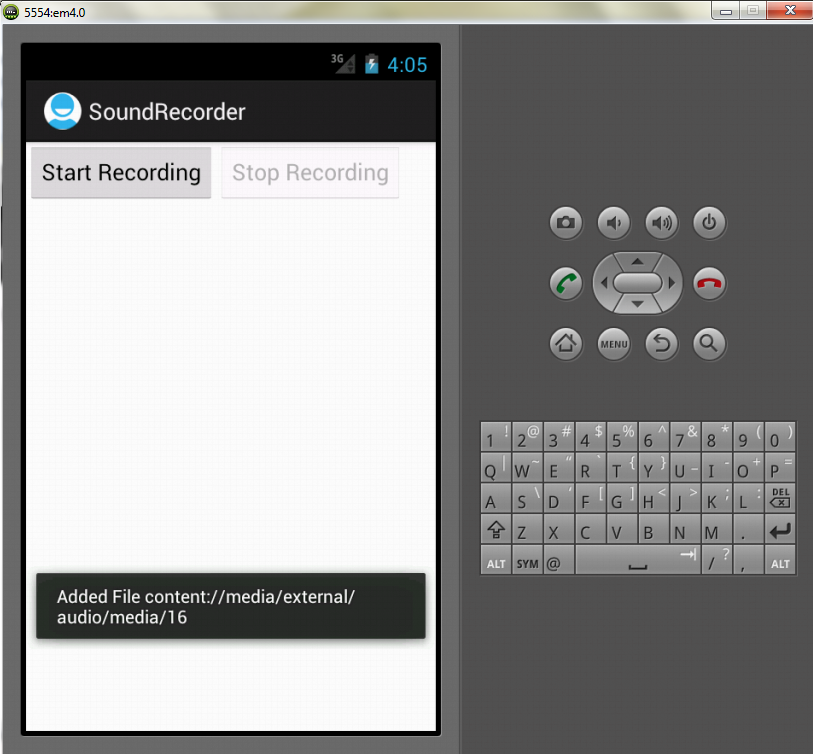
Output


Enjoy Guys! and don’t forget to post your comments. � MyTricksTime.com

How to Use your extra Gmail space as a hard drive

Hi! Guys Did you know that If you�re having extra space on your Gmail account and you don�t have extra space on your hard disk, you can use that free Gmail space as a hard drive. Using a cool freeware program called Gdrive will create an extra drive inside My Computer, and every time you use this drive i.e. use files from it, is actually downloading and uploading to your Gmail account. Let’s start it………
1. First download Gmail Drive
2. Extract the files from the downloaded file and click Setup.


3. After the installation go to My Computer and an extra drive called Gmail Drive will appear
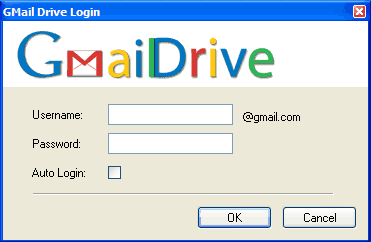
4. Double click it and a window with the user name and password will appear


Enjoy Guys! and don’t forget to post your comments. � MyTricksTime.com