How To Create Facebook Page For Business / Blogger / Blogs | MTT

F           

acebook is a best social media networking site. Have you business, company, blogger, blogs or any website? So create your own facbook page for your business, company, blogger, blogs and website. you can increase your traffic to your business, blogs by creating facebook page for your business or for blogs and there are so many advantages by create facebook page for your business or blogsFacebook is the second largest world among all planets and no. 1 in the world of internet so if you have any type of business or website or any blogs then I recommend that you must have a facebook page related to your business or blogs. So lets we talk about what is the advantage to create facebook page for business or blogs:

Read Also : Customized and stylized subscription widget

  • Drive traffic from facebook to your blogs
  • You will get your fans correspond to your pages
  • If you update anything in your facebook page then it will be in the status update of your all fans.(suppose you have 1K fans and you share your blog link it will be placed in front of 1K person so higher possibility for visit to your blog.
  • You can message to all your fans by just one click
  • Surely it will give you some professional work for your blog
  • (new feature) you can use your facebook as your facebook page( suppose you comment on any friends status then it show this comment by YOUR NAME but now instead of YOUR NAME you can use your FACEBOOK PAGE NAME so higher possibility to click on your FACEBOOK PAGE NAME and then to your blog.
  • Get visibility in major search engines.(for some keywords google shows my blog through our facebook page. See the preview:

Now let’s come to the main point;

How To Add Facebook Page For Business / Blogger / Blogs | MTT

Log into Facebook and then click here on Create a Page on Facebook . Then you will see some option for your facebook pages so choose for which you want to create your facebook page. If you want to create facbook page for blogs or website then choose Brand or Product now you will see as below preview,


choose website option and write your Blog Title below the option and tick facebook pages term and click on Get Started.
Now your page have been created on Facebook. You will see Get Started tab in your facebook page but it will show only for you and if any other visitors comes to your facebook page then they will see your wall by default. In the Get Started page you will see some instruction as 1,2,3, .. so as you complete your this started tab automatically remove ok forget about it. Firstky click on Edit Page(see right top side), see below preview


Click on Basic Information now choose again Websites & blogs in category and in the subcategory choose which is suitable to your blog and fill all the field properly as description and about your blog and don’t forget to write your blog URL under website option and then Save Changes.
Now click on Profile Picture and upload your blog picture. Now Click on View Page (see right top side). Now you can Invite your friends and Post Status Updates by first going to click on wall(see left panel) and write and post.
Now what will be the next for Import your blogs to facbook page through facebook notes

You done!

Enjoy Guys! and don’t forget to post your comments. � MyTricksTime.com

Must Have WordPress Plugins For Bloggers

WordPress is currently the leading Blog publishing platform in the planet powering more than 16% of website worldwide and more than 60% market share in CMS distribution. Because WordPress is simple, easy to use and also easy to setup.

However, being �easy to use� is not enough, sometimes we need functionality more than that WordPress has by default. So, In this post, we have listed 10 must have WordPress essential plugins that you should install and activate to power up your website.


Jetpack

It is packed with a bunch of plugins you will ever need for running your WordPress-based website; Stat, Spelling and Grammar,Shortcode, Sharing, Contact etc. If you don�t need one of the functionality, you can simply deactivate it.

Revision Control

This plugin extends the built-in WordPress revision functionality. It allows us to limit the number of revisions and it also displays a finer side-by-side revision comparison.

WordPress SEO

If you concern on your website rank in search engine, especially Google, then you need to WordPress SEO. It will help us improve almost every aspect in our website to gain better rank, from the title, internal link, keyword, snippet, and many more.

W3 Total Cache

W3 Total Cache, stated as The most complete WordPress performance framework. It will improve your website performance and user experience by optimizing the page cache, database, minify CSS and JavaScript, CDN and connecting to CloudFlare.

WP-Cleanup

This plugin will cleanup your WordPress database from unused data.

Akismet

Akismet is a very effective plugin to prevent and combat comment spam.

Better WP Security

This plugin will improve your site security by hardening every aspect that WordPress lack of and patch vulnerabilities.

Backup

All websites are vulnerable to attack without exception. So you need a backup for your website, just in case some days your site will be one of the victims of the attack. This plugin, Backup, will help you to do the job easily, it allows us to backup all our website assets as well as the database to Google Drive periodically (daily, weekly or monthly).

WordPress Analytic For WordPress

This plugin, WordPress Analytic for WordPress, will help you connect your site to Google Analytic easily with some additional advanced feature to get the most of your users activity in your website.

Feedburner Stat

With this plugin, we can grab data of our subscribers see the graph right from the back-end of our website.


Enjoy Guys! and don’t forget to post your comments. � MyTricksTime.com
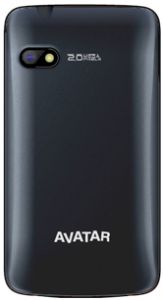
Intex Avatar 3D Price and Features


Intex Avatar 3D features overview:

Intex Avatar 3D is a Dual SIM touch screen mobile featuring 2 Mega pixels Camera,
Audio Player, Sound Recorder, Video Player,
King Movie and Social Networking.

Intex Avatar 3D features:

  • Dual SIM
  • Touch Screen
  • Social Networking
  • Webcam
  • King Movie
Specifications:

Display and User Interface Size 2.8″ 
Colors QVGA � 262K
Design Dimensions 102*55*12 mm
Weight 116 g
Network Operating frequency  GSM 900/1800
Battery Capacity  1100 mAh
Talk time (maximum) Up to 4 Hrs
Standby time (maximum) Up to 400 Hrs
Data and Connectivity EDGE/GPRS/WAP Yes
Bluetooth/Modem Yes
Memory  Card Slot Support TF/Micro SD card upto 32GB
SMS 500
Phone book 2000
Communications Messaging SMS, MMS
Call management Caller Group, Auto Call Record
Camera Resolution 2 Mega pixels
Video Recording Yes
Social Networking Social Networking Yes
Organizer Applications Language Support(English/ Hindi), Wallpaper, Torch Light, Messanger, Web Store
Music and audio Music features Audio Player, Sound Recorder, Video Player, King Movie
Stereo FM radio Yes
Others Gaming Yes

Intex Avatar 3D Price:

approx. Rs. 3,700 /-

Enjoy Guys! and don’t forget to post your comments. � MyTricksTime.com

How To Show Blogger Gadget/ Widget In Specific Pages

In this tutorial im going to explain How To Show 

Blogger Gadget/ Widget In Specific Pages. When we designing the 

blogger templates. sometime we want to change out gadget/

widget.Sometime need to show gadget/ widget homepage 

only.some time inside post only. At that time we don’t have

any option for customize like that. We need to understand 

about code.But most of are not good at coding.So in this 

tutorial will helps to arrange your gadget/ widget as you want.

follow these steps.


1. Log in to blogger account and Go to Design >> Edit HTML
    (make sure backup your template first)

2. Put checked mark in Expand Widget Templates

3. Now you have to press  Ctrl+F  key and type the unique  title that you gave to gadget or widget.
Lets say you gave title as Subscribe, the code will show like this.

<b:widget id='HTML1' locked='false' title='Subscribe' type='HTML'>
<b:includable id='main'>
<!-- only display title if it's non-empty -->
<b:if cond='data:title != ""'>
<h2 class='title'><data:title/></h2>
</b:if>
<div class='widget-content'>
<data:content/>
</div>
<b:include name='quickedit'/>
</b:includable>


So,code start with <b:includable id=’main’>  and end with </b:includable>
you have to find this both code.
lets see how to show this gadget in specific pages.

How to show blogger gadget in home page and other pages.(Except post pages.)

So,show gadget in home page and other pages.You have to add that red code like below.

<b:includable id='main'>
<b:if cond='data:blog.pageType == &quot;index&quot;'>
<!-- only display title if it's non-empty -->
<b:if cond='data:title != ""'>
<h2 class='title'><data:title/></h2>
</b:if>
<div class='widget-content'>
<data:content/>
</div>
<b:include name='quickedit'/>
</b:if>
</b:includable>


How to show blogger gadget in Post pages only.

<b:includable id='main'>
<b:if cond='data:blog.pageType == &quot;item&quot;'>
<!-- only display title if it's non-empty -->
<b:if cond='data:title != ""'>
<h2 class='title'><data:title/></h2>
</b:if>
<div class='widget-content'>
<data:content/>
</div>
<b:include name='quickedit'/>
</b:if>
</b:includable>


How to show blogger gadget in only specific page

<b:includable id='main'>
<b:if cond='data:blog.url == &quot;URL of the page&quot;'>
<!-- only display title if it's non-empty -->
<b:if cond='data:title != ""'>
<h2 class='title'><data:title/></h2>
</b:if>
<div class='widget-content'>
<data:content/>
</div>
<b:include name='quickedit'/>
</b:if>
</b:includable>


you can replace URL of the page with URL which you want to show the gadget only that page.

7. Now save your template
 you are done.
Enjoy Guys! and don’t forget to post your comments. � MyTricksTime.com

Customized and Stylized Subscription Widget

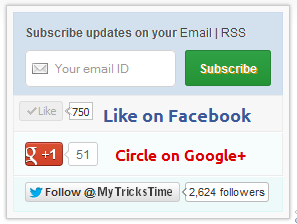
Many of this blog readers asked me which plugin/code I�m using in sidebar for Stylized Subscription Widget. So today I decide to share this with you! because It�s almost more than 2 months. I�ve not shared any Stylized Subscription for Widget Blogger and WordPress Widget.
Coming back to topic this widget simple uses HTML and CSS. 
It�ll keep your sidebar clean! ;) It contains FeedBurner Form, Twitter Follow Button, Facebook and Google buttons.

Adding Customized And Stylized Subscription Widget

You just need to place a code to your blog widget Follow following steps to add Customized and Stylized Subscription Widget to WordPress and Blogger both!
Adding Subscription Widget To Blogger
  1. Go to Dashboard > Design > Page Elements.
  2. Click Add A Gadget. In window, select HTML/Javascript .
  3. Copy the code below and paste it inside the box.
  4. Save the gadget. Drag the gadget and reposition it under Blog Posts gadget.
  5. Click Save button.
Adding Subscription Widget To WordPress
  1. Go to Dashboard > Appearance > Widgets > Available Widgets.
  2. Drag Text widget into a sidebar.
  3. Paste in the code.
  4. Save.

Code for Stylized Subscription Widget

<style>

#ABT-mashable-bar {
background-color: #f9f9f9; box-shadow: 0 0 3px #b0b0b0;
border:1px solid #ccc;
padding:6px;
width: 270px;

}

#subscribe-box .fb-like-box { border: 1px solid #EBEBEB; padding: 5px; background:#f7f7f7;}
#subscribe-box .gplusone { background: #f7fcfc; border: 1px solid #EBEBEB; border-top: 1px solid #fff; color: #000; font-size: 10px; line-height: 1px; padding: 9px 11px;}
#subscribe-box .twitter-follow { background: #eef9f9; border: 1px solid #dff6f6; border-top: 1px solid #fff; padding:5px 11px;}

#subscribe-box .email-box {
border-right: 1px solid #C7DBE2;
border-left: 1px solid #C7DBE2; background: #d3e0ed;

border: 1px solid #ccdaed; padding:11px; margin-bottom: -4px;}

#subscribe-box .email-box h4{color: #555;font-family: Arial;font-size: 12px; margin: 0 0 10px;}

#subscribe-box .email-box .txt,#subscribe-box .email-box .txt:focus{

border: 1px solid #d2d2d2;

color: #a19999; font-size: 12px;

border-radius: 5px;
-moz-border-radius: 5px;
-webkit-border-radius: 5px;

height:21px;

padding: 6px 28px 8px; width: 93px;

}

#subscribe-box .email-box .btn,#subscribe-box .email-box .btn:focus{ float:right;

margin-top: 0px;

background: #30a146; background: linear-gradient(top, #30a146 0%, #249334 100%); background: -moz-linear-gradient(top, #30a146 0%, #249334 100%); background: -webkit-gradient(linear, left top, left bottom, color-stop(0%, #30a146), color-stop(100%, #249334)); background: -webkit-linear-gradient(top, #30a146 0%, #249334 100%); text-shadow: 1px 1px 0 rgba(0, 0, 0, .4); font-weight:bold; font-family: "Droid Sans","Lucida Grande",Tahoma,sans-serif;

font-family: "Arial","Helvetica",sans-serif;
border-radius:3px;
-moz-border-radius:3px;
-webkit-border-radius:3px;
border:1px solid #248334 ;
color:white;
text-shadow:#d08d00 1px 1px 0;
padding:8.5px 10px;
margin-left:3px;
font-weight:bold;
font-size:12.2px;
cursor:pointer;
border-image: initial;}

#subscribe-box .email-box .btn:hover{

opacity: .8;
border-radius:3px;
-moz-border-radius:3px;
-webkit-border-radius:3px;
border:1px solid #248334 ;
color:#FFFFFF;
text-shadow:#d08d00 1px 1px 0}

</style>

<div id="ABT-mashable-bar">
<div id="subscribe-box">
<div class="email-box">
<h4>Subscribe updates on your <a href="http://feedburner.google.com/fb/a/mailverify?uri=
MyTricksTime" target="_blank">Email</a> | <a href="http://feeds.feedburner.com/MyTricksTime" target="_blank">RSS</a></h4>
<form action="http://feedburner.google.com/fb/a/mailverify" method="post" onsubmit="window.open('http://feedburner.google.com/fb/a/mailverify?uri=
MyTricksTime', 'popupwindow', 'scrollbars=yes,width=700px,height=700px');return true" target="popupwindow">
<input class="txt" style="background: #FFF url('http://i.imgur.com/2BCD0.png') no-repeat 6px !important;" onfocus="if (this.value == 'Your email ID ') {this.value = '';}" onblur="if (this.value == '') {this.value = 'Your email ID ';}" type="text" name="email" value="Your email ID " />

<input type="hidden" name="uri" value="
MyTricksTime" />

<input type="hidden" name="loc" value="en_US" />

<input class="btn" style="margin-left: 4px;" type="submit" value="Subscribe" />
<div style="clear: both;"></div>
</form></div>

<div class="fb-like-box"><iframe style="border: none; overflow: hidden; width: 80px; height: 21px;" src="//www.facebook.com/plugins/like.php?href=http%3A%2F%2Fwww.facebook.com%2
MyTricksTime&send=false&layout=button_count&width=80&show_faces=false&action=like&colorscheme=light&font&height=21" frameborder="0" scrolling="no" width="320" height="240"></iframe><a style="color: #3b5998; font-family: ubuntu; font-size: 18px; font-weight: bold; line-height: 20px;" href="http://www.facebook.com/MyTricksTime" rel="nofollow" target="_blank"> Like on Facebook </a>
<div class="clear"></div>
</div>

<div class="gplusone">
<div style="float: left; width: 90px;">
<div id="___plusone_0" style="height: 24px; width: 106px; display: inline-block; text-indent: 0pt; margin: 0pt; padding: 0pt; background: none repeat scroll 0% 0% transparent; border-style: none; float: none; line-height: normal; font-size: 1px; vertical-align: baseline;"><iframe id="I1_1322986463651" style="position: static; left: 0pt; top: 0pt; width: 106px; margin: 0px; border-style: none; height: 24px; visibility: visible;" title="+1" name="I1_1322986463651" src="https://plusone.google.com/_/+1/fastbutton?url=http%3A%2F%2Fwww.MyTricksTime.com%2F&size=standard&count=true&annotation=&hl=en-US&jsh=m%3B%2F_%2Fapps-static%2F_%2Fjs%2Fwidget%2F__features__%2Frt%3Dj%2Fver%3D-8uDua_W7bo.en_GB.%2Fsv%3D1%2Fam%3D%218NuGo4ypxRCIwtBaLA%2Fd%3D1%2F#id=I1_1322986463651&parent=http%3A%2F%2Fwww.
MyTricksTime.com&rpctoken=511986996&_methods=onPlusOne%2C_ready%2C_close%2C_open%2C_resizeMe" frameborder="0" marginwidth="0" marginheight="0" scrolling="no" width="100%" height="240"></iframe></div>
</div>
<a style="color: #dd0000; font-family: ubuntu; font-size: 16px; font-weight: bold; line-height: 24px;" href="https://plus.google.com/
102588571388484646448" rel="author" target="_blank">Circle on Google+</a>
<div class="clear"></div>
<!-- Place this render call where appropriate -->

<script type="text/javascript">// <![CDATA[
(function() {

var po = document.createElement('script'); po.type = 'text/javascript'; po.async = true;

po.src = 'https://apis.google.com/js/plusone.js';

var s = document.getElementsByTagName('script')[0]; s.parentNode.insertBefore(po, s);

})();
// ]]></script></div>
<div class="twitter-follow">
<iframe style="width: 300px; height: 20px;" title="" src="http://platform.twitter.com/widgets/follow_button.html#_=1322986464549&button=blue&id=twitter-widget-22&lang=en&screen_name=
MyTricksTime" frameborder="0" scrolling="no" width="320" height="240"></iframe>

<script type="text/javascript" src="//platform.twitter.com/widgets.js"></script></div>
<div id="mashable" style="height: 12px; background: #f9f9f9; border: 0px solid #CCC; border-top: 1px solid white; text-align: right; border-image: initial; font-size: 10px;"><span class="author-credit" style="font-family: Arial, Helvetica, sans-serif;"><a href="http://www.MyTricksTime.com" target="_blank">Widget �</a></span></div>
</div>
</div>
If you face any problem with code. Please Let Us Know Contact US

Customization!

Due to some issue. I can�t highlight changes you�ve to make in above code. Hope you won�t mind ;) . Now look for bold letter above and replace it with your Username, IDs like;
  • Replace MyTricksTime with your feedburner Feed URL.
  • Replace MyTricksTime with your facebook Page URL.
  • Replace MyTricksTime with your twitter url.
  • Replace www.MyTricksTime.com with your blog URL.
  • And at least replace https://plus.google.com/102588571388484646448 with your Google+ Profile Link.

Credits!

This widget is first shared on MyTricksTime. Readers are requested to link back if you�re going to share this widget on their blog!
That�s all. I hope you�ll like this widget. Let me know if I missed anything or you face any issue!
Happy Blogging :D
Enjoy Guys! and don’t forget to post your comments. � MyTricksTime.com